How To Find Out My Minecraft Server Ip

Alright, fellow adventurers, let's dive into the pixelated world of Minecraft and find out how to uncover that elusive server IP address. Why bother, you ask? Well, imagine th...
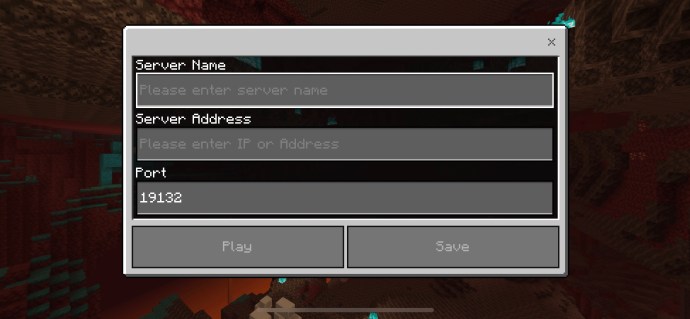
Alright, fellow adventurers, let's dive into the pixelated world of Minecraft and find out how to uncover that elusive server IP address. Why bother, you ask? Well, imagine this: you're stuck on a deserted island (okay, okay, it's a blocky island), and you've just discovered a hidden treasure map. But wait, you need to join a secret server to claim your loot! That's where finding your server IP comes in, and it's way easier than you think.
First Things First: What's an IP Address?
In simple terms, an IP address is like your Minecraft server's home address. It's a unique set of numbers that helps other players find and connect to your server. Think of it as the GPS coordinates that lead you to your favorite in-game village, but for servers instead.
Why Do You Need It?
Knowing your server's IP address is like having a secret password to your own private world. It's how you'll share your server with friends, join other players' games, and even set up your own server at home. So, let's get started, shall we?
Must Read
Finding Your Server IP: A Step-by-Step Guide
Method 1: The Easy Peasy Way (For Multiplayer Servers)
Alright, so you're already playing on a multiplayer server, and you want to know its IP address. Here's how you can find it:
- Open your chat window in-game. You can do this by pressing the 'T' key on your keyboard.
- Type in '/ip' (without the quotes) and press Enter. Voila! Your server's IP address should appear in the chat window.
Easy as pie, right? Now you can share this IP address with your friends so they can join your server too.
 PS4 IP Tracker: How to Get Someone IP Address on PS4? [4 Ways]
Method 2: The DIY Server Way (For Your Own Server)
If you've set up your own server at home, you'll need to find its IP address to share it with others. Here's how you can do that:
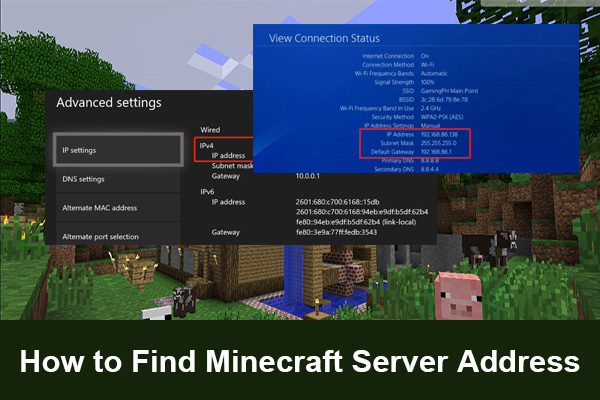
- Open the command prompt on your computer. You can do this by pressing the Windows key + R, typing 'cmd', and pressing Enter.
- In the command prompt, type 'ipconfig' (without the quotes) and press Enter. This will display your computer's IP address and other network information.
- Look for the line that says 'IPv4 Address' or 'IP Address'. The number next to it is your server's IP address. Write it down, as you'll need it to share your server with others.
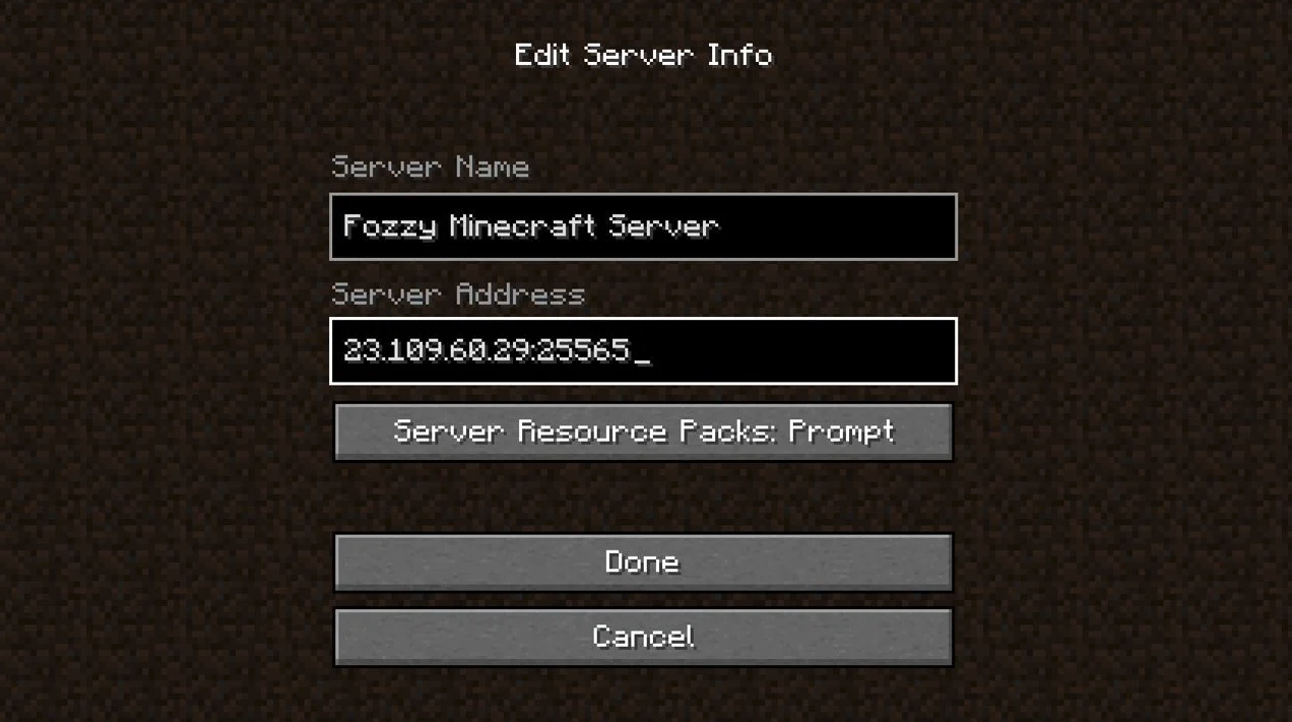
Now that you've found your server's IP address, you can share it with your friends so they can join your game. Just remind them to include the port number (usually 25565) after the IP address, like this: 123.456.789.123:25565.
 What is My Minecraft Server Address?
You Did It! Now Go Explore!
Congratulations, you've just unlocked the secret to finding your Minecraft server's IP address. Now you can share your server with friends, join other players' games, and even set up your own server at home. The pixelated world of Minecraft is your oyster, so go out there and explore, build, and have fun!
Remember, every new IP address you discover is like a new adventure waiting to happen. So, keep exploring, keep learning, and most importantly, keep having fun. After all, that's what Minecraft is all about. Happy gaming, adventurer!
