How To Delete Partition On Flash Drive

Hey there, tech-savvy friend! Today, we're going to tackle a question that's been bugging you, right? "How do I delete a partition on my flash drive?" Don't worry, it's not as...

Hey there, tech-savvy friend! Today, we're going to tackle a question that's been bugging you, right? "How do I delete a partition on my flash drive?" Don't worry, it's not as scary as it sounds. We'll get through this together, and by the end, you'll be a partition-deleting pro!
First Things First: Why Delete a Partition?
Before we dive in, let's talk about why you might want to do this. Maybe you've got a flash drive that's been split into tiny, useless partitions. Or perhaps you're trying to make room for a big file that just won't fit. Whatever the reason, we've all been there, and that's okay!
Gather Your Tools
Alright, now that we're on the same page, let's grab the tools we'll need. You'll want a computer (obviously), your flash drive, and a program called Diskpart. Don't worry, it's free and comes with Windows. If you're on a Mac, you can use Disk Utility. Easy peasy!
Must Read
Let's Get Started!
First, plug in your flash drive. Make sure it's the right one, okay? We don't want any accidental deletions. Now, let's open Diskpart. On Windows, press Win + R, type diskpart, and hit enter. On a Mac, just search for Disk Utility in Spotlight.
Finding Your Flash Drive
In Diskpart, type list disk and press enter. You'll see a list of disks. Find your flash drive - it's usually the smallest one. Let's say it's Disk 1. Now, type select disk 1 and press enter. You're one step closer!
Listing Partitions
Now, type list partition to see the partitions on your flash drive. Let's say you've got two: Partition 1 and Partition 2. We want to delete Partition 2, so type select partition 2.
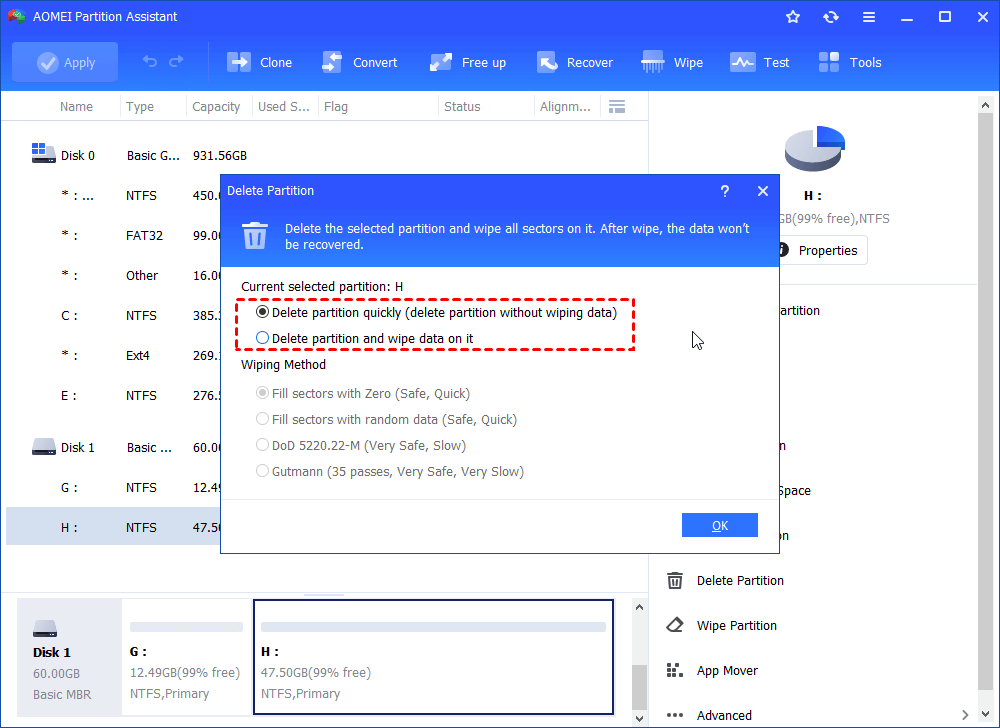 Fixed: Cannot Delete Partition on USB Flash Drive or SD Card
Deleting the Partition
Alright, here's where the magic happens. Type delete partition override and press enter. Boom! That partition is gone. But wait, we're not done yet!
Creating a New Partition
Now that we've deleted the partition, let's make some room. Type create partition primary to create a new, big, beautiful partition that takes up the whole flash drive. Isn't that nice?
Formatting the New Partition
Finally, let's format this new partition. Type format fs=ntfs quick (for Windows) or format fs=exfat quick (for Macs). This makes sure your new partition is ready to use.
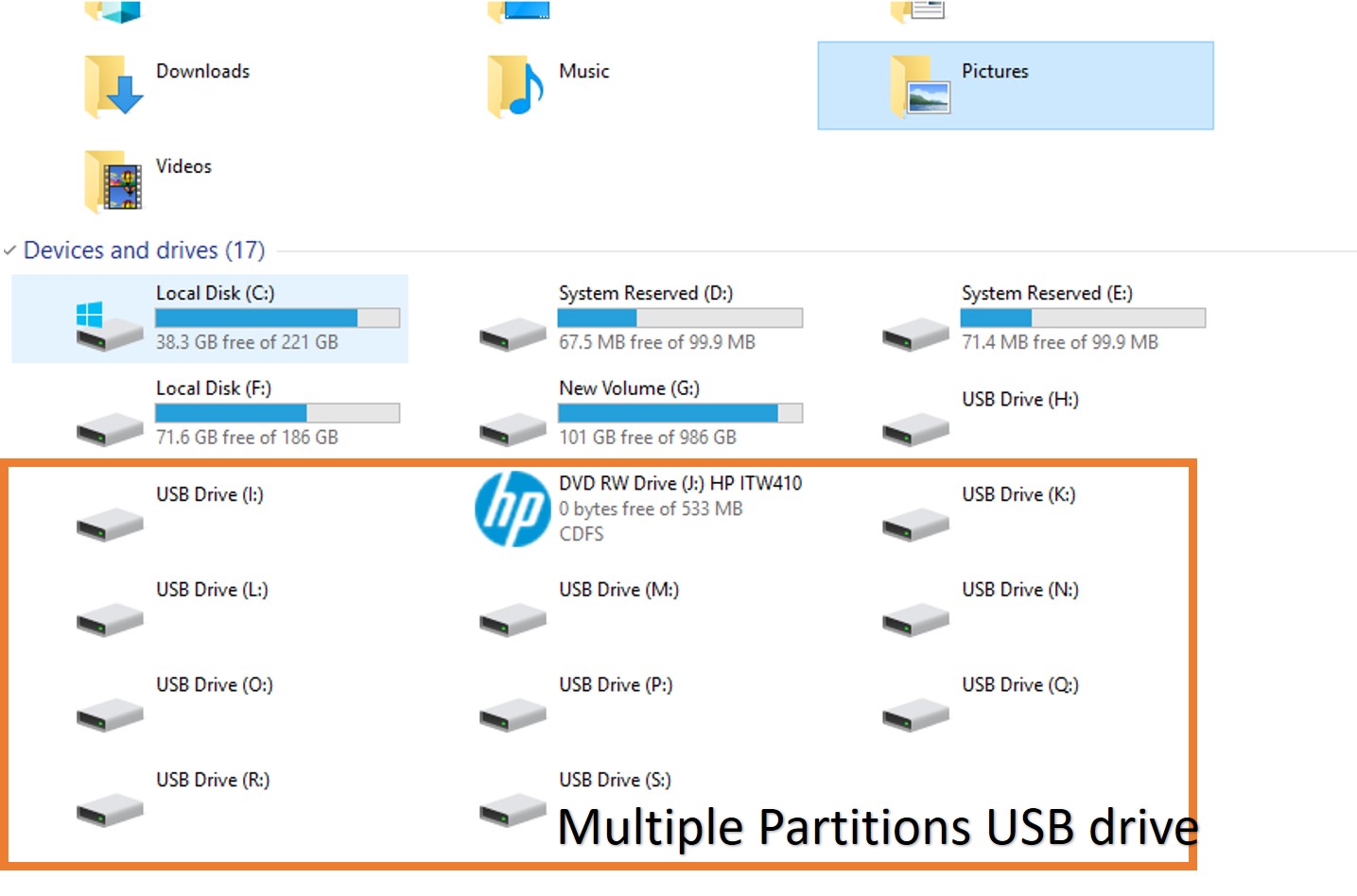 Partitions Usb Delete at Judy Moore blog
Almost Done!
Now, type assign letter=z to give your new partition a drive letter. I chose 'z' because it's the last letter of the alphabet, and who doesn't love being last sometimes?
You Did It!
Congratulations, you've just deleted a partition and created a new one! You're a tech genius now. Go ahead, give yourself a pat on the back. You've earned it!
And there you have it, folks! Deleting a partition on a flash drive isn't so scary after all. You've just gained a new skill, and that's something to smile about. Keep exploring, keep learning, and most importantly, keep smiling!
