How To Remove Apps On A Mac

Hey there, tech-savvy friend! Ever found yourself drowning in a sea of apps on your Mac, wondering how to set sail for calmer waters? You're not alone! Today, we're going to m...

Hey there, tech-savvy friend! Ever found yourself drowning in a sea of apps on your Mac, wondering how to set sail for calmer waters? You're not alone! Today, we're going to make waves and clear that clutter together. So, grab your metaphorical life jacket, and let's dive in!
Why the App Clutter?
First things first, why do we even have this app-ocalypse on our Macs? Well, blame it on the free-for-all app culture. With the Mac App Store and countless developers, it's like being a kid in a candy store - you want to try them all! But, just like that sugar rush, the app overload can leave you feeling sluggish and overwhelmed. Time to cut back, yeah?
Meet Your App Uninstaller
Alright, let's introduce you to the hero of our story - the Launchpad. Think of it as your app's personal trainer, ready to help you say goodbye to the flabby, unused apps taking up space. To summon it, just press F4 or click on the Launchpad icon in your Dock. Ta-da!
Must Read
Let's Get Physical
Now, here's where it gets fun. In the Launchpad, apps are grouped by categories. See those little X's in the corner of some app icons? Those are your eject buttons. Click and hold on an app, and those X's will appear like magic. Click on one, and poof! That app is history. Easy peasy, lemon squeezy!
But wait, what if an app is giving you trouble? Maybe it's being all clingy and won't uninstall? Don't worry, we've got a trick up our sleeve. Hold down the Option key while you click and drag the app to the Trash. That should do the trick!
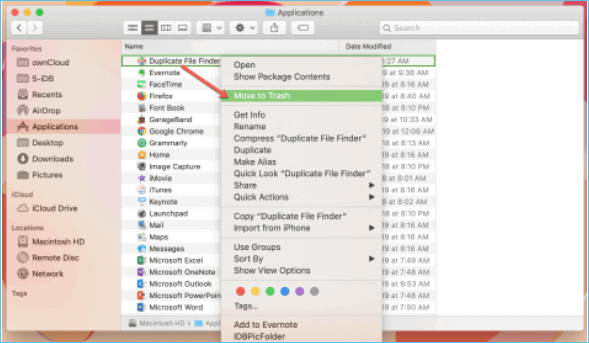 Uninstall/Delete Apps on Mac/iMac/MacBook Pro/Air - EaseUS
Deleting App Leftovers
Now, you might be thinking, "But wait, I can still see that app in my Applications folder!" Don't panic. Some apps leave behind traces, like little app ghosts. To truly banish them, you'll need to delete their leftovers. Here's how:
- Open Finder and click on Go in the menu bar.
- Hold down Option and you'll see Library appear in the dropdown. Click on it.
- Now, navigate to Application Support and delete the folder(s) related to the app you uninstalled.
Feeling like a Mac whisperer yet? You should be! You've just learned the secret language of app uninstallation. Now go forth, clear that clutter, and enjoy your newly streamlined Mac!
 How to uninstall Apps on Mac • MacPlus Software
Bonus Round: App Zombies
Alright, let's talk app zombies. You know, those apps that keep launching at startup, even when you've uninstalled them? Eek! To put them down for good, open your System Preferences, click on Users & Groups, then Login Items. Here, you can remove those pesky app zombies from your startup list. Sweet dreams, indeed!
And there you have it, folks! You're now a certified app uninstallation pro. So go on, clear that clutter, and enjoy your newly organized Mac. Until next time, happy app hunting!
