How To Delete A Page On Pdf

Ever found yourself staring at a PDF, cringing at a page that's out of place, or worse, contains a typo that's been replicated a thousand times? You're not alone. We've all be...
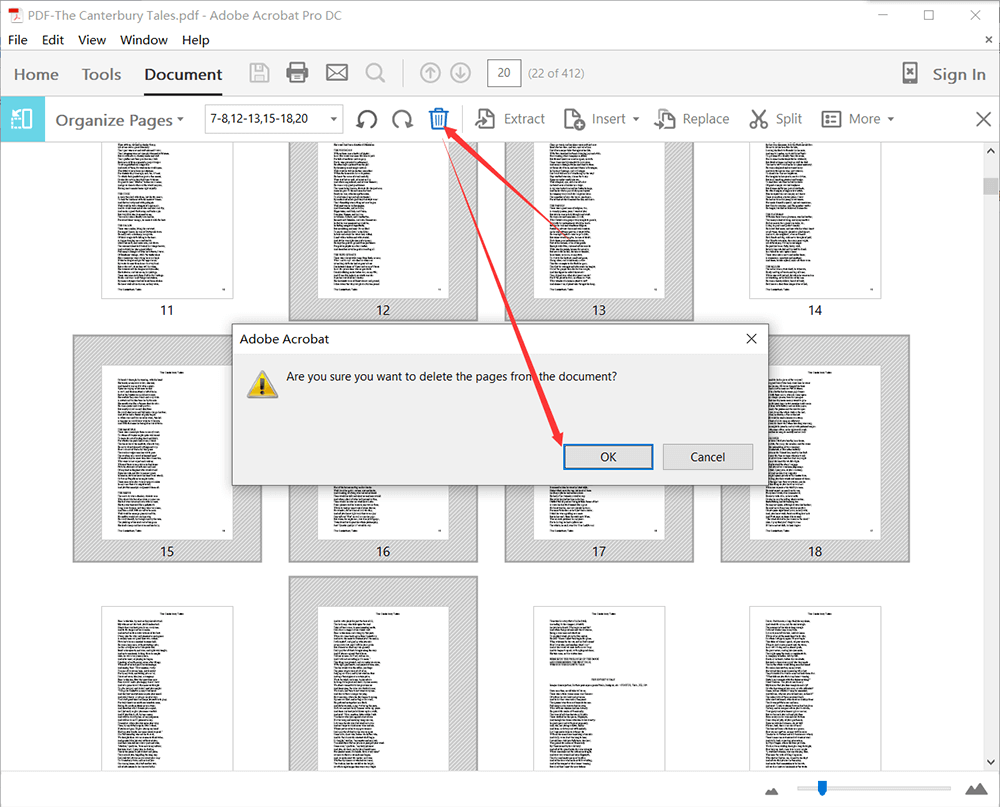
Ever found yourself staring at a PDF, cringing at a page that's out of place, or worse, contains a typo that's been replicated a thousand times? You're not alone. We've all been there, and it's a frustrating place to be. But fear not, dear reader, for we're about to demystify the art of deleting a page from a PDF. It's easier than you think, and we promise, no ancient incantations or secret handshakes required.
Why Delete a Page from a PDF?
Before we dive into the how-to, let's talk about why you might want to delete a page. Maybe you're creating a digital portfolio and you want to remove a piece of art that didn't quite make the cut (RIP, 'Starry Night' fan art). Perhaps you're a teacher who wants to remove a solution from a worksheet before sharing it with students (spoiler alert: they don't like that). Or maybe, just maybe, you're trying to create a PDF version of 'War and Peace' without the, well, 'war and peace' part. We won't judge.
Tools of the Trade
First things first, you're going to need a PDF editor. There are plenty of options out there, from free online tools to paid software. Some popular choices include Adobe Acrobat, Smallpdf, and PDFescape. For the sake of this article, we'll be using Adobe Acrobat, but the principles are similar across most tools.
Must Read
How to Delete a Page from a PDF
Method 1: The Quick and Easy Way
Alright, let's get down to business. Open your PDF in your chosen editor. Once you're in, you should see a panel on the right-hand side with various tools. Click on the 'Tools' tab, then select 'Prepare Form'. A new panel will appear, with a thumbnail view of your PDF. Here's where the magic happens. Simply click on the page you want to delete, then hit the 'Delete' key on your keyboard. Voila! That page is gone, never to be seen again. Well, until you hit 'Undo', but let's not think about that.
Method 2: The Long and Winding Road
Now, if you're using a tool that doesn't have the 'Prepare Form' option, or you're just feeling masochistic, there's another way. Open your PDF, then click on 'Tools', then 'Edit PDF'. This will open a new window with your PDF. Click on the page you want to delete, then right-click and select 'Delete'. It's a bit more clicks, but it gets the job done.
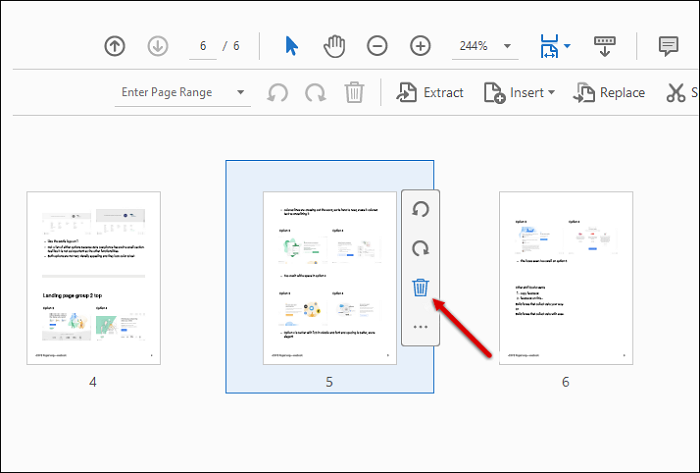 How to Delete Pages from PDF Easily (Top 4 Methods) - EaseUS
Pro Tip: Check Your Page Numbers
Before you hit that 'Save' button, take a moment to check your page numbers. Deleting a page can throw off the numbering of the rest of your document. Most PDF editors will renumber automatically, but it's always a good idea to double-check. After all, you don't want to end up with a 'Page 2 (Page 1 missing)' situation. Trust us, it's not as funny as it sounds.
Fun Fact: The PDF Was Almost Called 'Camelot'
Yes, you read that right. The PDF, that stalwart of digital documents, was almost named 'Camelot'. According to Adobe's co-founder, John Warnock, the name was suggested by his wife, Marva, who was a big fan of the musical 'Camelot'. Fortunately, they settled on 'PDF', which, while not as catchy, is a bit more professional. We like to imagine a world where every time we open a PDF, we hear the opening bars of 'The Sound of Music'. A girl can dream, can't she?
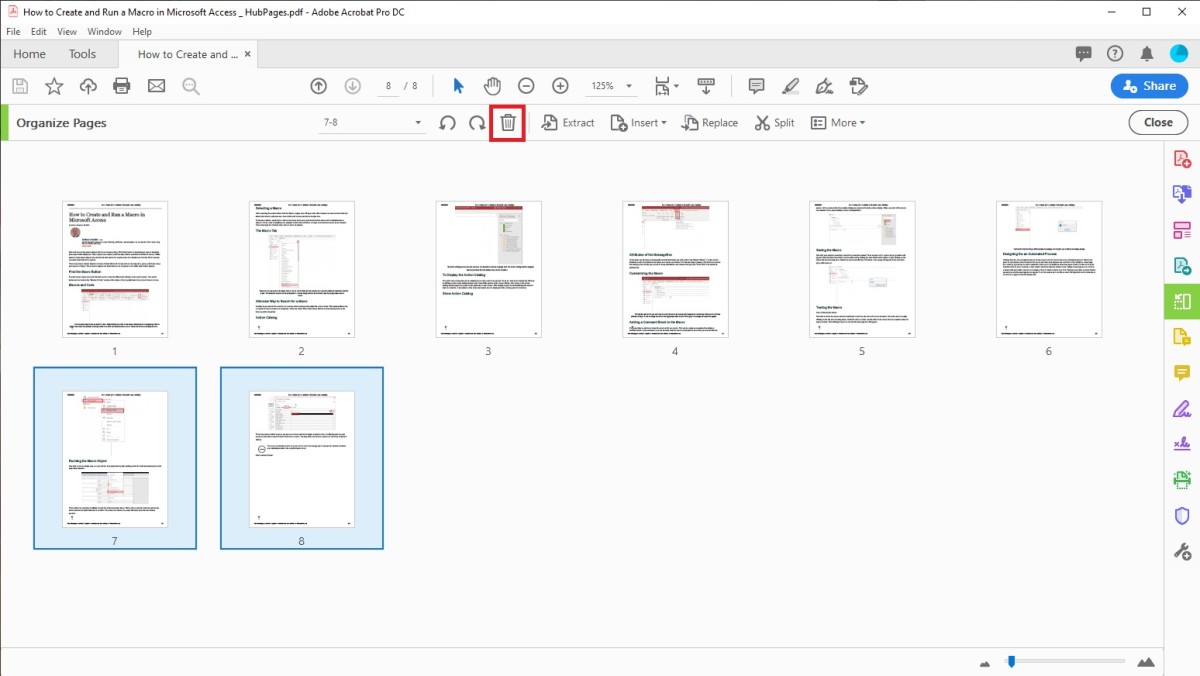 How to Delete PDF Pages With Adobe Acrobat DC - HubPages
Reflection: The Art of Letting Go
Deleting a page from a PDF might seem like a small thing, but it's a powerful reminder of the art of letting go. We all have things in our lives that we wish we could delete - mistakes, regrets, that time we tried to cook paella and ended up with a smoky kitchen and a very confused cat. But just like that page in your PDF, once you let them go, they're gone for good. So, the next time you're deleting a page, take a moment to reflect. What in your life could you delete, and how might that make room for something new?
And there you have it, folks. Deleting a page from a PDF is as easy as 1, 2, 3 (or, you know, a few more clicks). So, go forth, delete with abandon, and remember, every click brings you one step closer to a typo-free, mistake-free, cat-friendly world. Happy deleting!
