How Do I Sign Out From Gmail

Alright, let's talk about something we all do at least once a day - signing out of Gmail. Now, I know what you're thinking, "Why do I need help with that? It's as easy as pie!...

Alright, let's talk about something we all do at least once a day - signing out of Gmail. Now, I know what you're thinking, "Why do I need help with that? It's as easy as pie!" Well, hold your horses, partner. We've all been there - you're in a rush, you've got a million tabs open, and suddenly, you're not sure if you've signed out or not. It's like that one time you thought you'd turned off the stove, but then you found out you hadn't, and your dinner was burnt to a crisp. Not that I'm speaking from experience or anything...
Why Bother Signing Out?
First things first, why should you even bother signing out? I mean, it's not like your Gmail account is going to jump into someone else's lap and start sending emails to your ex. But here's the thing - signing out is like locking your front door. Sure, you might live in a super safe neighborhood where nothing bad ever happens, but it's always better to be safe than sorry, right?
Think about it - you might be using a public computer, or your kids might be using your laptop. You wouldn't want them accidentally sending an email to your boss that says, "Hey, I'm actually not coming into work today because I'm binge-watching 'Tiger King'." Well, maybe you would, but that's a different story.
Must Read
How to Sign Out: The Easy Peasy Lemon Squeezy Way
Now, let's get down to business. Signing out of Gmail is about as difficult as trying to figure out what your great-aunt Mabel was trying to say at the family reunion. Here we go:
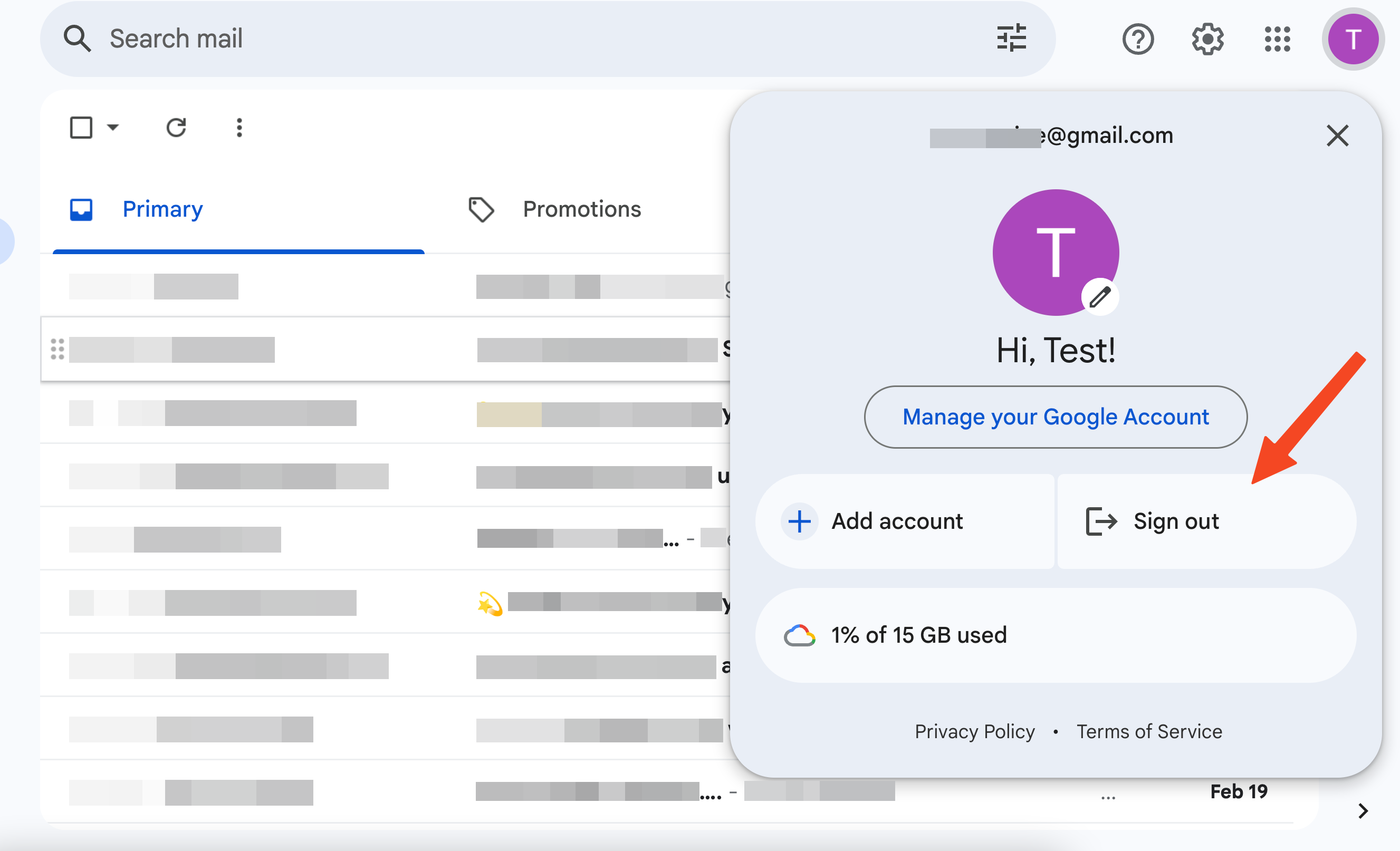
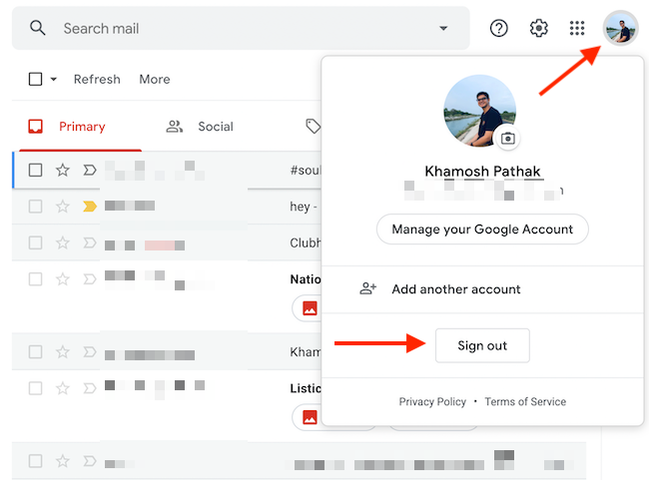
1. Look Up: First, you need to look up from your screen. I know, I know, it's a tough task, but someone's got to do it. You'll see a little profile picture or initial in the top right corner. Click on that.
2. Sign Out: Once you've clicked on that little picture, you'll see a menu pop up. At the bottom of that menu, you'll see the words "Sign Out." Click on that. It's like clicking the off switch on your coffee maker - simple, yet satisfying.
But Wait, There's More!
Now, you might be thinking, "But what if I want to sign out of all my other Google accounts too? I don't want to go through this rigmarole every time." Well, fear not, dear reader! When you click "Sign Out," it'll ask you if you want to sign out of all your other Google accounts too. Just click "Yes," and you're done. It's like checking off a to-do list - one task, multiple benefits.
 How to Sign Out of Gmail on Any Device or Remotely (2026)
What If I'm Using the Gmail App?
Alright, let's talk about the Gmail app. I know, I know, you're addicted to your phone, and you can't imagine life without it. But don't worry, signing out of the Gmail app is just as easy as signing out on your computer. Here's how:
1. Tap on Your Profile: At the top right corner of your screen, you'll see your profile picture or initial. Tap on that.
2. Sign Out: At the bottom of the menu that pops up, you'll see "Sign Out." Tap on that. And just like that, you're done. It's like closing a book - a satisfying end to a chapter.
But What If I Forgot to Sign Out?
Alright, let's say you're like me - you're always in a rush, and you forget to sign out. Don't worry, it happens to the best of us. Here's what you can do:
1. Remote Sign Out: Google has a nifty little feature that lets you sign out of all other sessions remotely. Here's how to do it:
 How to Sign Out of Gmail
a. Go to your Google Account. You can find it by clicking on this link: https://myaccount.google.com/
b. On the left side of the page, you'll see a menu. Click on "Security."
c. Under "Third-party apps with account access," you'll see an option that says, "Manage third-party access." Click on that.
d. At the bottom of the page, you'll see an option that says, "Sign out all other web sessions." Click on that. It's like kicking out an uninvited guest - firm, but fair.
And there you have it, folks! Signing out of Gmail is as easy as pie (see, I told you I'd bring that back). So next time you're in a rush, or you're using a public computer, or you're just feeling paranoid, remember these simple steps. Your digital safety will thank you, and so will your great-aunt Mabel.
