How To Compress A Jpeg On Mac

Squeezing Pixels: A Mac User's Guide to JPEG Compression Alright, Mac users, let's talk about something that's as inevitable as death and taxes - JPEG compression. You know, t...
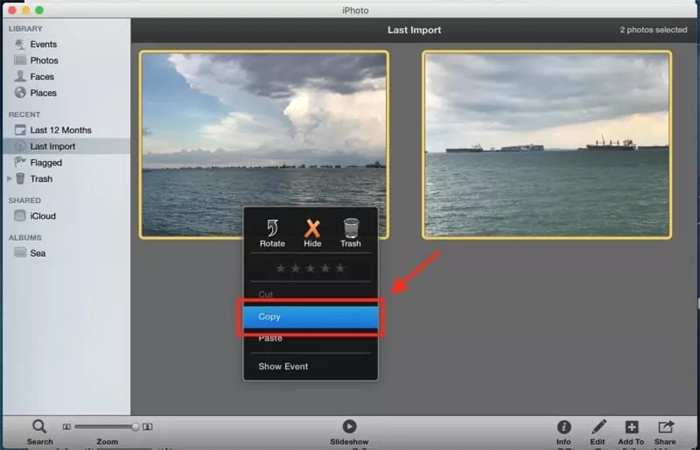
Squeezing Pixels: A Mac User's Guide to JPEG Compression
Alright, Mac users, let's talk about something that's as inevitable as death and taxes - JPEG compression. You know, that thing you do when you want to send your latest iPhone snap to your grandma without her Wi-Fi crying for mercy. So, grab your favorite latte, and let's dive in.
Understanding JPEG: The Good, The Bad, and The Blurry
First things first, let's get to know our nemesis. JPEG, or Joint Photographic Experts Group, is a file format that uses lossy compression to reduce the size of image files. It's great for web use and email, but it's not so hot for, say, printing out your family portraits. Every time you save a JPEG, it chops off some data, and while you might not notice it in a small image, zoom in and you'll see the pixels start to dance the cha-cha.
Think of JPEG like a game of Telephone. You whisper a sentence to your friend, they whisper it to the next person, and so on. By the time it gets back to you, it's usually something like, "The quick brown fox jumps over the lazy dog's couch." Okay, maybe not that dramatic, but you get the idea.
Meet Your Compression Tools
Now that we've got the basics down, let's meet the tools that'll help us squeeze those pixels. The most common way to compress JPEGs on a Mac is through the built-in Preview app. But if you're looking for more control, you might want to check out dedicated image editing software like Adobe Lightroom or even the free, open-source darktable.
For this article, we'll stick with Preview. It's simple, it's built-in, and it's got enough oomph to get the job done. Plus, it's like the Swiss Army knife of Mac apps - you never know when you might need it.
Compressing JPEGs in Preview: A Step-by-Step Guide
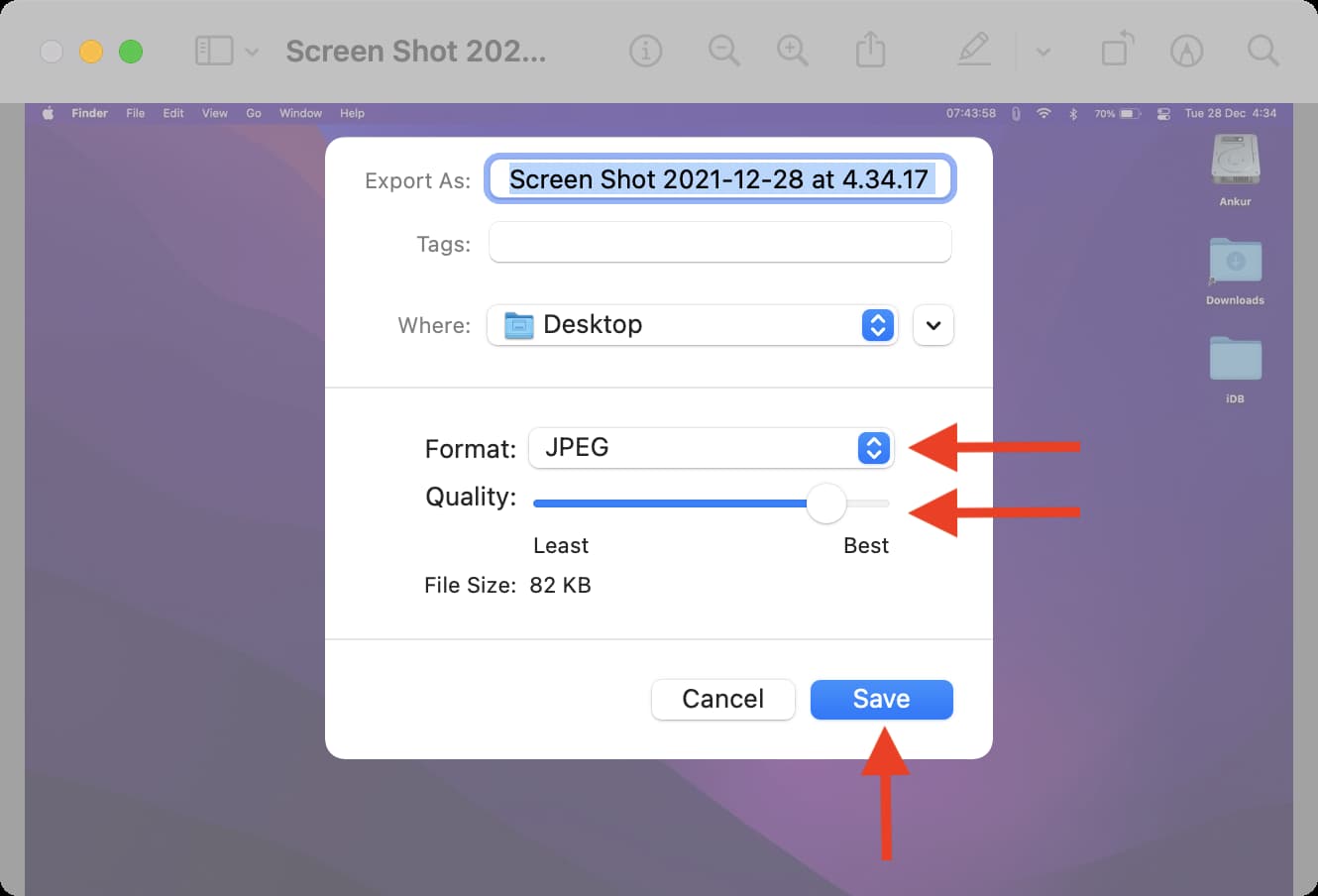
Alright, let's get down to business. Open the image you want to compress in Preview. See that little slider at the top? That's your compression tool. Drag it to the right to increase the quality (and file size), or to the left to decrease it. The lower the number, the more data gets chopped off.
But here's the thing - you don't want to go too low. As a general rule, anything below 80 starts to get noticeably blurry. So, find that sweet spot where the file size is small enough, but the image is still sharp enough for your needs.
 7 free ways to compress images on Mac
Once you're happy with the compression, save your image. And that's it! You've just compressed a JPEG. Pat yourself on the back, you digital whiz, you.
Bonus Round: Batch Compressing Images
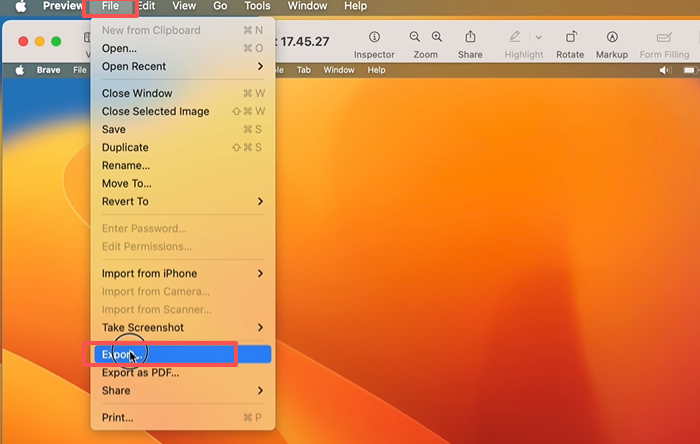
But what if you've got a whole bunch of images to compress? Do you really want to compress them one by one? No, you don't. That's why we're going to show you how to compress them in batches. Open all the images you want to compress in Preview. Then, go to File > Export As. In the dialog box that appears, choose JPEG from the format dropdown menu. Then, adjust the quality slider to your heart's content.
But here's the magic part - check the box that says Save as a copy. This means that Preview will create new, compressed versions of your images, leaving the originals untouched. Then, just click Save, and watch as Preview works its magic.
When to Compress, and When to Let It Be
So, when should you compress your images? The short answer is, whenever you're going to use them on the web, or send them via email. But if you're planning on printing them, or using them in any way that requires high resolution, leave them be. You can't un-compress an image, so it's better to start with a high-quality original and resize it as needed.
 4 Best Ways to Compress JPG Files without Losing Quality
Think of it like baking a cake. You can't add more flour after you've mixed the batter, but you can always add more frosting. So, start with a high-quality image, and add compression (or frosting) as needed.
Fun Fact: The World's Largest JPEGp>Before we wrap up, did you know that the world's largest JPEG is a whopping 195 terapixels? That's right, it's so big that it can't be viewed on a single screen. It's called the "Earth Mosaic," and it's a composite image of the entire planet, made up of over 120,000 individual photographs. Talk about a high-res selfie!Reflection: The Art of Letting Go
So, there you have it - everything you need to know to compress a JPEG on a Mac. But as you're squeezing those pixels, remember that there's an art to letting go. You can't keep every high-resolution image forever, just like you can't keep every pair of jeans from high school. Sometimes, you've got to let things go, even if it means they'll never be quite the same again.
And that's okay. Because in the end, it's not about the perfect image, it's about the story it tells. So, go forth, compress with confidence, and tell your story, one pixel at a time.
