How Do I Reset My Google Home

Alright, so you've gone and done it. You've asked Google Home to play "Never Gonna Give You Up" for the 500th time today, and now it's decided to throw a tantrum and stop work...
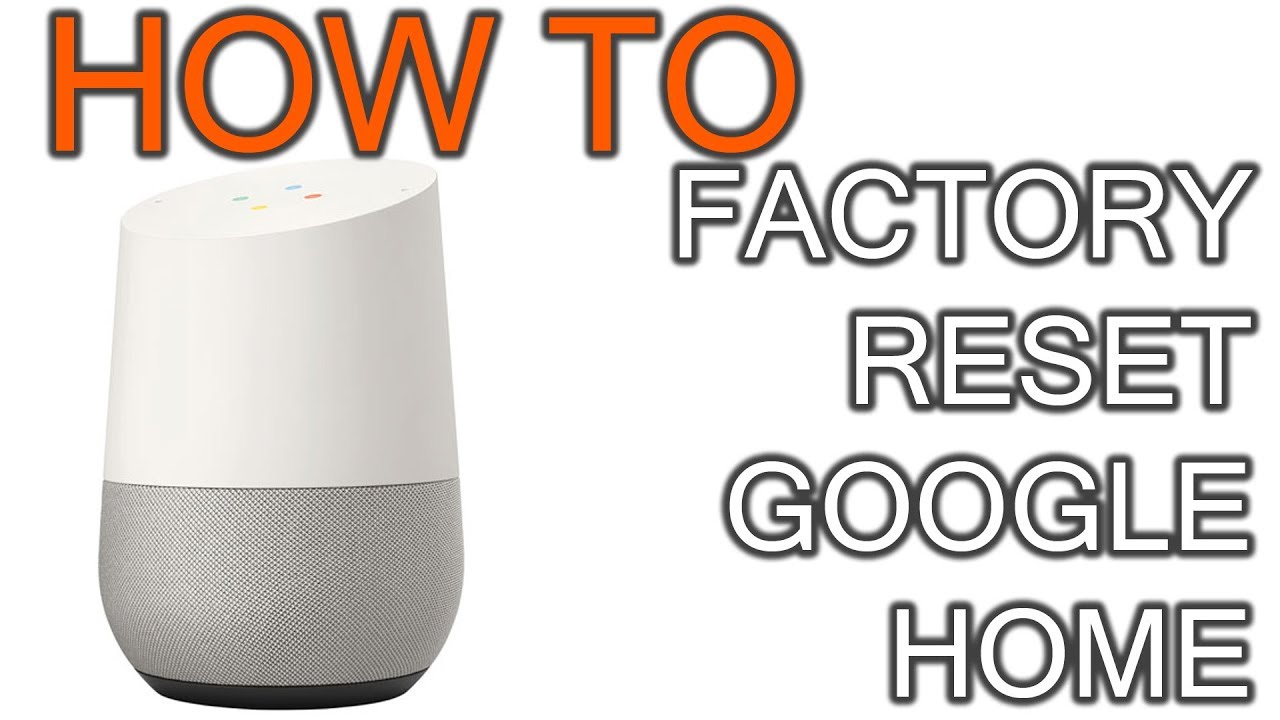
Alright, so you've gone and done it. You've asked Google Home to play "Never Gonna Give You Up" for the 500th time today, and now it's decided to throw a tantrum and stop working. Don't worry, we've all been there. It's time for a little reset, and I'm here to guide you through it like your own personal tech fairy godmother.
First Things First: The Easy Peasy Reset
Before we dive into the deep end, let's try the simplest solution. You know, just in case Google Home is feeling a bit dramatic and just needs a little nap.
- Find that tiny little button on the back of your Google Home. It's hiding, I know, but it's there. It's about the size of a pencil eraser, so you might need to put on your detective hat.
- Press and hold that button for about 15 seconds. I know, I know, it feels like an eternity in tech time. But stick with it, we're almost there.
- Once you've held it for that long, the lights on your Google Home should start spinning. This is the tech version of a yawn and a stretch. It's waking up!
If your Google Home is now back to its chatty self, great! You can skip the rest of this article and go back to asking it ridiculous questions. If not, don't worry, we've got more tricks up our sleeve.
When in Doubt, Unplug It
Alright, so the easy reset didn't work. It's time to get a little more serious. We're talking unplugging serious. I know, I know, it's the 21st century, and we're all about keeping things plugged in 24/7. But sometimes, a good old-fashioned unplug is just what the doctor ordered.
So, go ahead and unplug your Google Home from the power outlet. Yes, that's right. Just pull that little plug right out. Don't worry, it won't hurt a bit. Now, count to 30. I know, I know, it's like waiting for Christmas morning when you're a kid. But trust me, it's worth it.
After 30 seconds, plug your Google Home back in. The lights should start spinning again, and this time, it should be back to its old self. If not, well, it's time to call in the big guns.
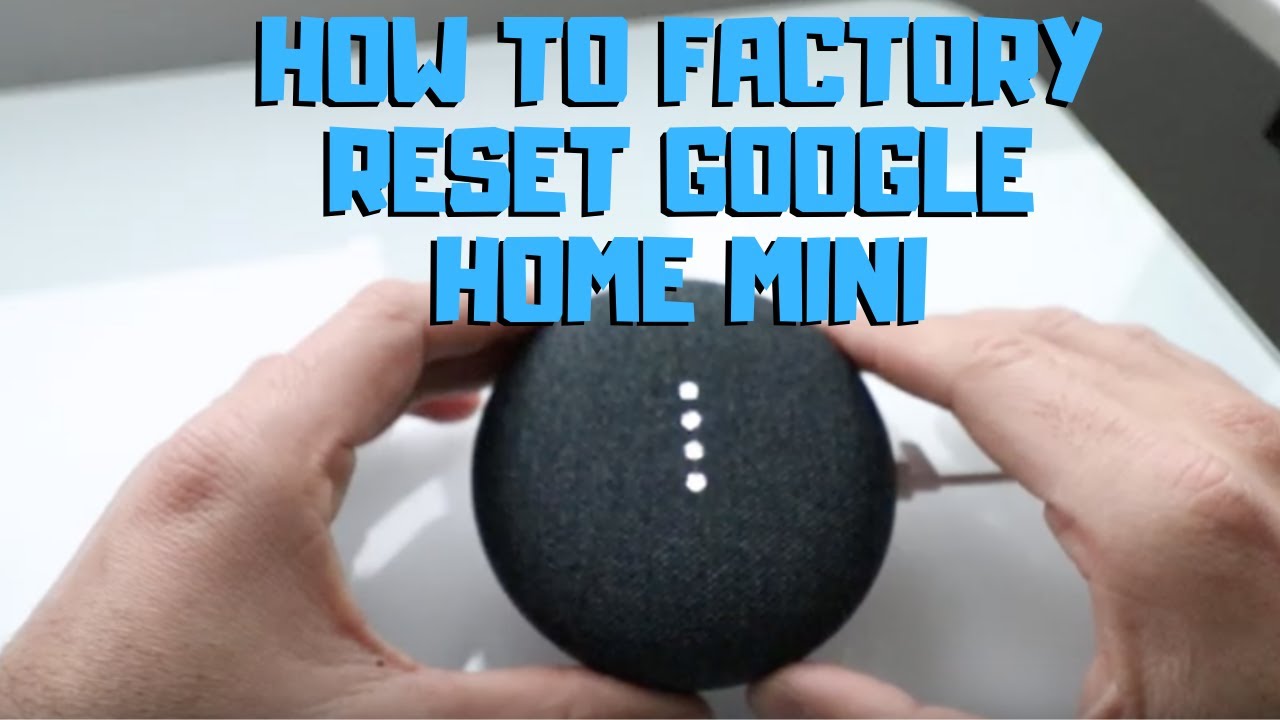 How Do You Factory Reset Your Tablet - Dibujos Cute Para Imprimir
Factory Reset: The Big Guns
Alright, so you've tried the easy reset, you've unplugged it, and now it's time for the big guns. We're talking factory reset here, folks. It's like giving your Google Home a fresh start, a clean slate. But before you do this, make sure you've backed up any important settings or routines. You don't want to lose all that hard work, do you?
Once you've backed up everything, it's time to get started. Find that tiny little button on the back of your Google Home again. This time, press and hold it for about 40 seconds. Yes, you read that right. 40 seconds. It's a long time, I know. But it's worth it to get your Google Home back to its old self.
After 40 seconds, the lights on your Google Home should start spinning and then turn white. This is the tech version of a white flag. It's surrendering, and that's a good thing. Now, just follow the setup process again on your phone, and your Google Home should be back to its chatty, helpful self.
 How to Factory Reset Your Google Home | Urban VPN
And That's a Wrap!
And there you have it! You've successfully reset your Google Home, and now it's back to being your trusty sidekick. Whether you went for the easy reset, the unplug, or the factory reset, you've proven that you're a tech whiz. So, go ahead, ask it what the capital of Zimbabwe is. I dare you.
Remember, tech troubles are always a part of life. But with a little patience and a lot of know-how, you can conquer them all. So, the next time your Google Home decides to throw a tantrum, you'll know exactly what to do. And who knows, maybe you'll even have a little fun while you're at it.
Now, go forth and enjoy your newly reset Google Home. And remember, if all else fails, there's always the "Never Gonna Give You Up" dance to fall back on. Trust me, it never gets old. Wink, wink.
