How To Get To Minecraft On Mac

So, you're a Mac user, huh? You've got your sleek, silver beast sitting there, just begging to be taken on an adventure. And what better adventure than a pixelated one in Mine...

So, you're a Mac user, huh? You've got your sleek, silver beast sitting there, just begging to be taken on an adventure. And what better adventure than a pixelated one in Minecraft? Let's dive in, shall we?
First Things First: Check Your Mac's Age
Before we start, let's make sure your Mac is ready for this. Minecraft needs at least a Mac with an Intel Core 2 Duo processor, 2GB of RAM, and OS X 10.7.5 or later. If your Mac is older than your favorite pair of jeans, it might be time for an upgrade. But hey, who are we to judge?
Now, Let's Get Down to Business
Alright, let's assume your Mac is ready. First, you'll need to buy Minecraft from the official Minecraft website. Don't worry, it's not like you're buying a real diamond pickaxe or anything. Once you've done that, you'll get a download link.
Must Read
Now, here's where things get a tad different from the PC version. You can't just double-click and start playing. No, no, no. Macs like to keep things interesting. You'll need to use a program called Java. Don't worry, it's not as scary as it sounds. It's just a platform for running applications.
Installing Java: The Not-So-Scary Part
If you don't have Java, your Mac will tell you. You'll see a big, red error message when you try to run Minecraft. But don't panic! Just head over to the official Java website and download the latest version. It's like installing a tiny, virtual coffee shop in your Mac.
Once it's downloaded, open it up and follow the instructions. It's as simple as clicking 'Next' a few times and then 'Finish'. Easy peasy, lemon squeezy.
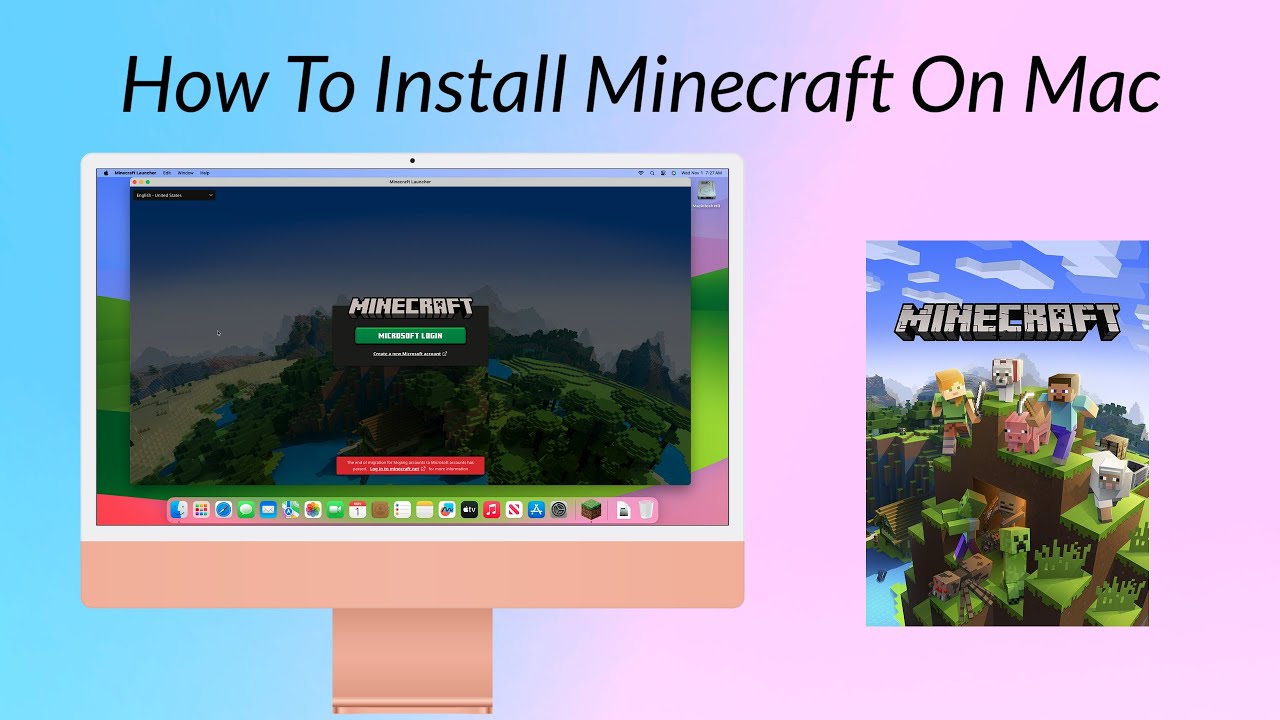 How To Install Minecraft On Mac - YouTube
Now, Let's Actually Play Minecraft
Alright, with Java installed, you're ready to roll. Open up your Downloads folder and find the Minecraft application. It's a big, green, blocky icon. You can't miss it. Double-click it, and voila! You're in the Minecraft launcher.
Here, you can create a new world, join a friend's world, or tinker with the settings. But hey, we all know you just want to start mining. So, click 'Play' and let the adventure begin.
Troubleshooting: Because Sometimes, Things Go Wonky
If Minecraft isn't working, don't throw your Mac out the window (yet). First, try closing and reopening the application. Sometimes, that's all it needs.
 How to Get Minecraft (Java Edition) on ANY Mac EASY - Download
If that doesn't work, try running the game in 'Safe Mode'. This can help you figure out if there's a mod causing trouble. To do this, hold down 'Shift' while you open the Minecraft launcher. Then, click 'Safe Mode'.
If all else fails, it might be time to reach out to the Mojang Support. They're a friendly bunch, and they're always happy to help. Just remember, they can't reach through the screen and fix your Mac for you. Yet.
And there you have it! You're now ready to explore, build, and survive in the world of Minecraft. Just remember, if you get lost, it's not our fault. We tried to warn you about those caves.
