How To Put Password On Zip File

Ever felt like your zip file is a secret treasure chest, and you want to keep it locked up tight? Well, you're in luck, my friend! Today, we're going to learn how to put a pas...
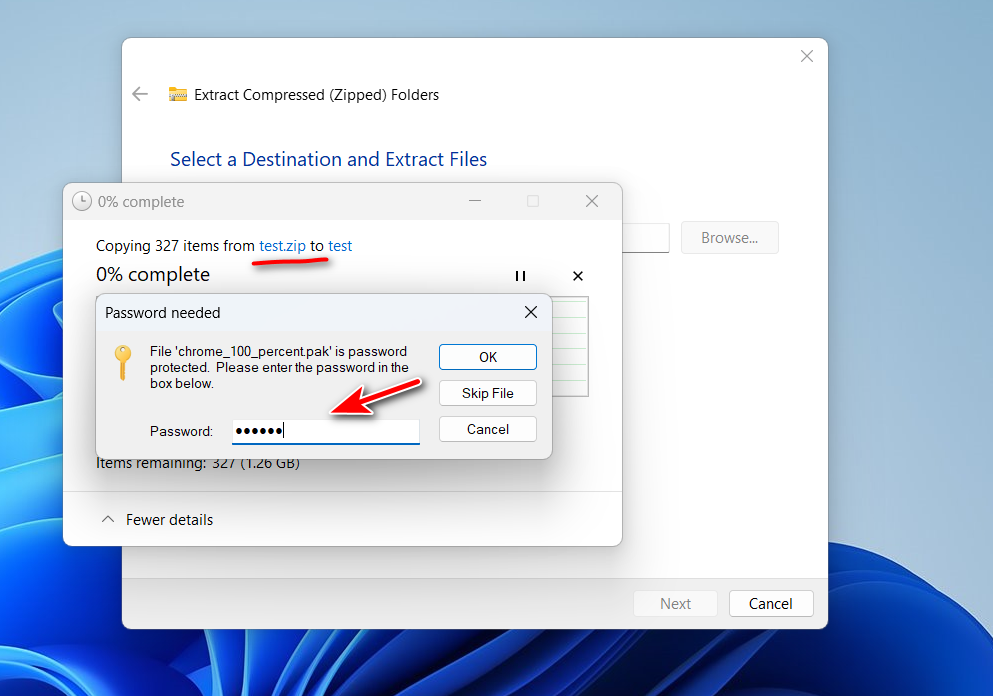
Ever felt like your zip file is a secret treasure chest, and you want to keep it locked up tight? Well, you're in luck, my friend! Today, we're going to learn how to put a password on your zip file, and it's easier than you think. So, grab a snack, get comfy, and let's dive in.
Why Bother With Passwords?
You might be thinking, "Why do I need to password protect my zip file? It's just a bunch of files, right?" Well, let me ask you this: would you leave your diary lying around for anyone to read? No way, right? Your digital files can contain just as much personal or important information, so it's a good idea to keep them safe.
Think of it like this: a zip file without a password is like a treasure chest with no lock. Sure, it's convenient, but anyone can just waltz in and take your treasure. But with a password, it's like you've got a super-secret, magical lock that only you can open. Pretty cool, huh?
Must Read
Let's Get Started!
Alright, let's get our hands dirty. I'm going to show you how to password protect your zip file using two popular methods: 7-Zip and WinRAR. Both are free to use, so pick your poison.
Method 1: 7-Zip
7-Zip is a powerful, open-source file archiver that's available on Windows, macOS, and Linux. It's like the Swiss Army knife of zip tools. Here's how to use it:
- First, download and install 7-Zip from their official website if you haven't already. It's as easy as clicking the big, green download button.
- Once installed, right-click on the folder you want to zip and select "Add to Archive" from the context menu.
- In the "Add to Archive" window, make sure "7-Zip" is selected in the "Archive format" dropdown. Then, click on "Encryption" in the top right corner.
- In the "Encryption" window, check the "Encrypt file names" and "Encrypt headers" boxes. Then, enter your password in the "Password" field and confirm it.
- Click "OK" to create your password-protected zip file. Boom! You're done.
Method 2: WinRAR
WinRAR is another popular file archiver, and it's available on Windows, macOS, and Linux. It's like the fancy, paid version of zip, but it has a free trial that's more than enough for our needs. Here's how to use it:
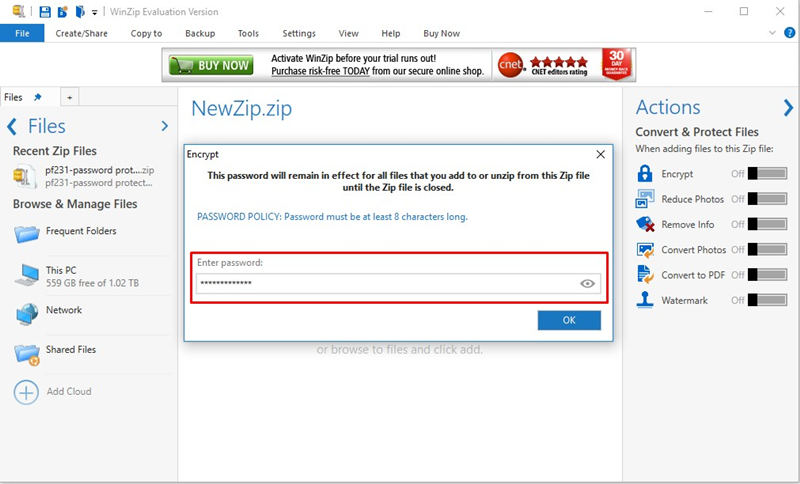 How to Password Protect A ZIP File
- First, download and install WinRAR from their official website. Again, it's as easy as clicking the big, green download button.
- Once installed, right-click on the folder you want to zip and select "Add to Archive" from the context menu.
- In the "Archive name and parameters" window, enter a name for your zip file and click on the "Set password" button.
- In the "Password" window, enter your password and confirm it. You can also enter an optional "Comment" if you want.
- Click "OK" to create your password-protected zip file. Easy peasy!
Testing Your Password
Alright, you've created your password-protected zip file, but how do you know if it's really working? Simple: try to open it without the password. If you can't, then you know it's locked up tight.
To test it, just double-click on your zip file. If it's password protected, you should see a "Password" prompt. Enter your password, and if it's correct, your files should open up like a magical treasure chest.
What If I Forget My Password?
Alright, let's address the elephant in the room: what if you forget your password? Well, my friend, I'm sorry to say that there's no magic trick to unlock a zip file without the password. It's like trying to open a locked treasure chest without the key.
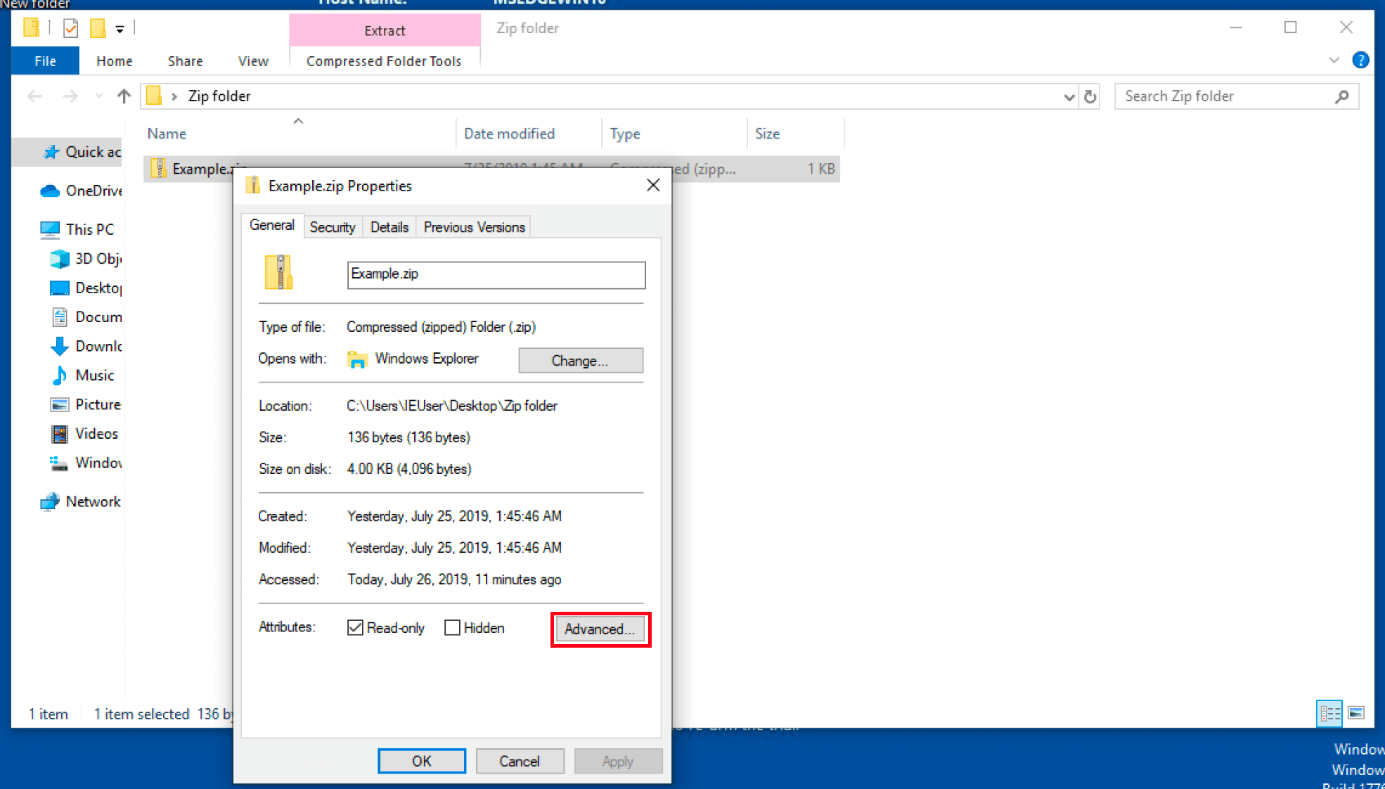 How to Password Protect Your ZIP Files in Windows 10 & macOS - IONOS UK
That's why it's super important to choose a password that you'll remember. And if you're worried about forgetting, you can always write it down and keep it in a safe place. Just make sure no one else can find it!
And That's a Wrap!
And there you have it, folks! You've now learned how to put a password on your zip file, and you're well on your way to becoming a digital treasure hunter. So go forth, protect your files, and remember: with great power comes great responsibility. Stay safe out there!
Until next time, this has been your friendly neighborhood tech guide, signing off.
