How Do I Log Out Of A Facebook Account

Alright, listen up! You're scrolling through Facebook, laughing at memes, and suddenly you realize you've been logged in for... well, who knows how long? It's time to log out,...

Alright, listen up! You're scrolling through Facebook, laughing at memes, and suddenly you realize you've been logged in for... well, who knows how long? It's time to log out, my friend, and here's how you do it. Let's dive in!
Logging Out on a Computer
First things first, let's talk computers. You're sitting at your desk, your laptop's fan is whirring like a tiny jet engine, and you're ready to sign off.
1. Hover over the top right corner of your Facebook page. See that little triangle? That's your secret friend. Hover over it, and voila! A menu pops up.
Must Read
2. Click on 'Settings'. It's the first option in the menu. You'll be taken to a new page that looks like a control panel for your Facebook spaceship.
3. Click on 'Log Out'. It's at the bottom of the menu, looking all lonely. Click it, and just like that, you're outta there! Your computer will ask if you're sure, but don't worry, it's just being nosy.
Logging Out on a Mobile Device
Now, let's talk mobile. You're on the go, your phone's battery is draining faster than a leaky balloon, and you need to log out.
1. Tap the three lines (☰) at the top right corner of your screen. It's like a secret knock to open the menu.
2. Scroll down and tap on 'Settings & Privacy'. It's at the bottom of the menu, looking all important. Tap it, and you'll be taken to a new page that looks like a command center for your Facebook galaxy.
3. Tap on 'Settings'. You're almost there! Now, look for 'Security and Login'.
 4 Easy Ways to Log Out of Facebook - wikiHow
4. Tap on 'Security and Login'. It's like opening a treasure chest. Now, look for 'See More' under the 'Active Sessions' section.
5. Tap on 'See More'. Here, you'll see a list of all the places (and devices) you're logged into. Tap on the three dots (⋮) next to the session you want to log out of.
6. Tap on 'Log Out'. And just like that, you're logged out! Your phone might ask if you're sure, but don't worry, it's just trying to be helpful.
Logging Out of All Sessions at Once
Alright, so you've logged out of your current session, but what about all those other places you're still logged in? Here's how to log out of all sessions at once.
1. Follow steps 1-4 from the 'Logging Out on a Mobile Device' section. You're a pro at this by now, right?
2. Tap on 'Log Out of All Sessions'. It's at the bottom of the page, looking all dramatic. Tap it, and Facebook will ask if you're sure you want to log out of all sessions.
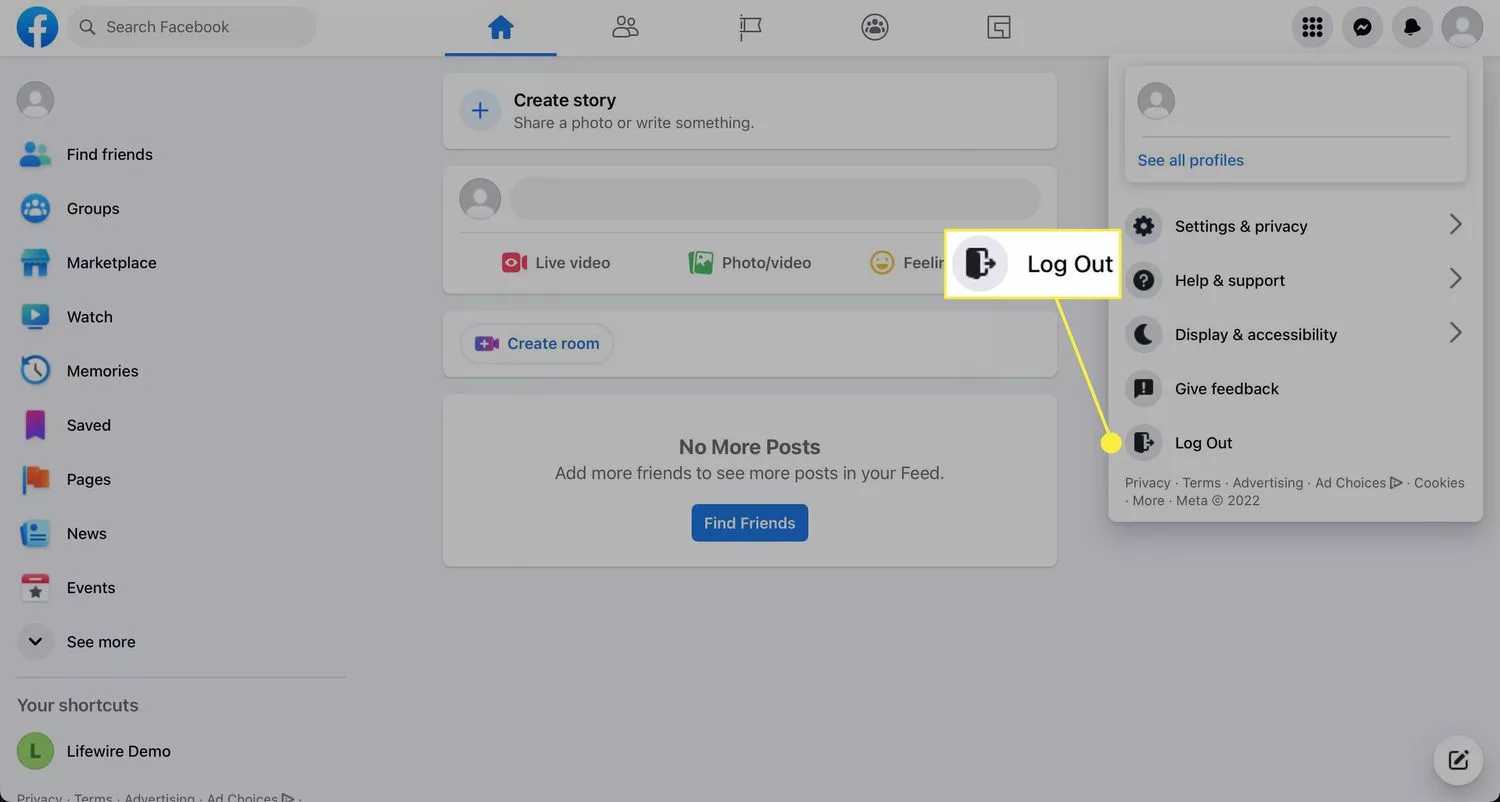 How to Log Out of Facebook: A Complete Guide 2024
3. Tap on 'Log Out'. And just like that, you're logged out of all your Facebook sessions. Your phone might ask if you're sure one more time, but don't worry, it's just being extra careful.
Why Bother Logging Out?
You might be thinking, "Why bother logging out? I'll just be logging back in tomorrow." Well, let me tell you, my friend, logging out has its perks!
1. Privacy, Privacy, Privacy. When you're logged out, nobody can sneak into your account and snoop around. It's like having a secret diary with a lock on it.
2. Security, Security, Security. Logging out helps protect your account from hackers. It's like having a guard dog that only lets you in.
3. Fresh Start. Logging out and logging back in can sometimes clear up those pesky Facebook glitches. It's like rebooting your computer, but for Facebook.
So there you have it, folks! Logging out of Facebook is as easy as 1, 2, 3. Now go forth, log out, and enjoy your Facebook-free time. You deserve it!
