How To Make The Apple Logo Glow On Macbook Pro

So, you've got your hands on a shiny new MacBook Pro, huh? Congratulations, you're now part of the cool kids' club. But wait, you say you want that sleek Apple logo on the bac...
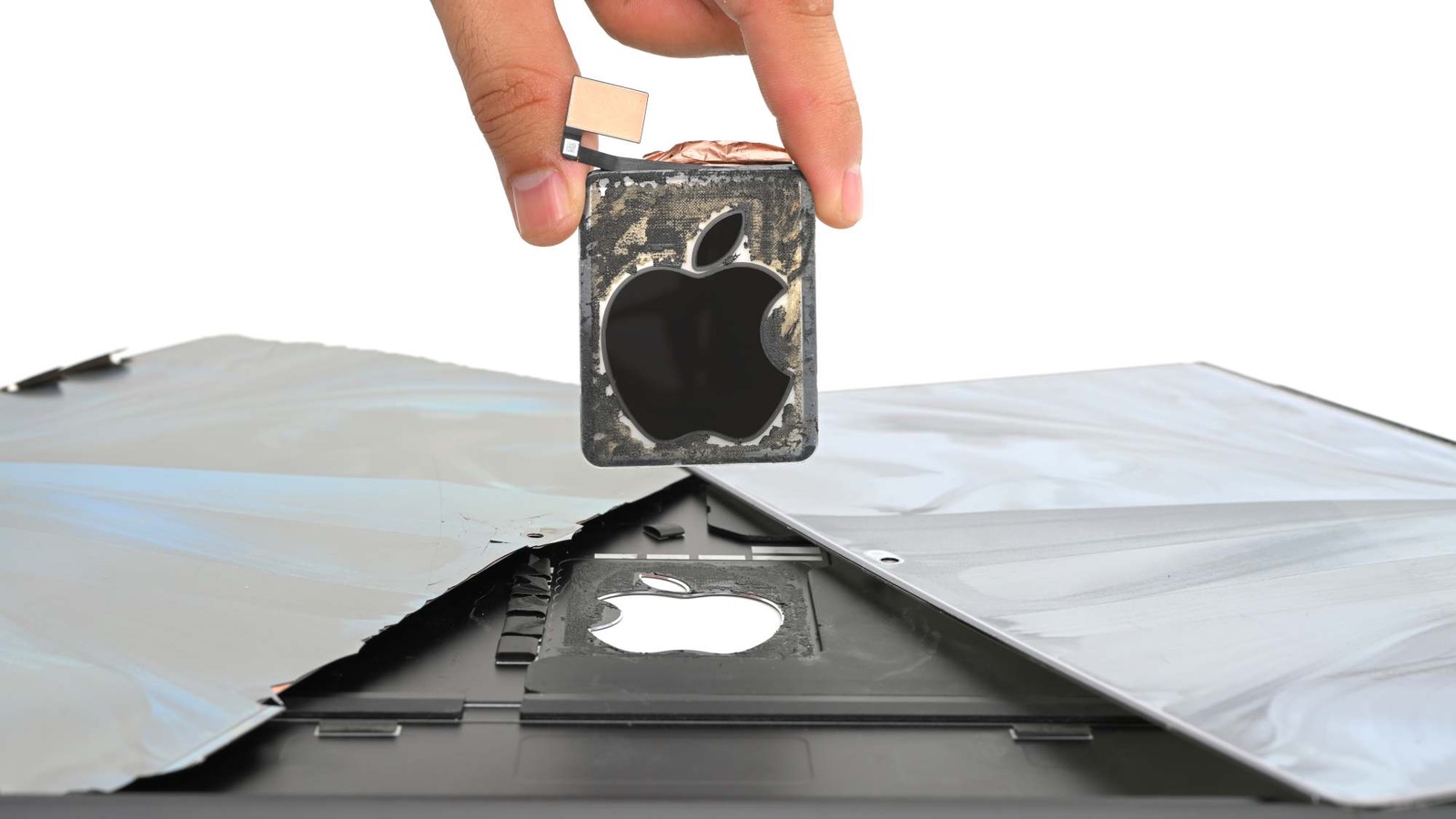
So, you've got your hands on a shiny new MacBook Pro, huh? Congratulations, you're now part of the cool kids' club. But wait, you say you want that sleek Apple logo on the back to glow like a mystical unicorn's horn? Well, my friend, you've come to the right place. Let's dive into this techno-mystery, shall we?
Why the Logo Glows (and Why You Shouldn't Be Creeped Out)
First things first, let's address the elephant in the room. No, your MacBook isn't possessed. The glowing logo is just a nifty little feature Apple added to help you navigate your laptop in the dark. It's like a tiny, tech-savvy nightlight. Isn't that adorably functional?
Now, you might be wondering, "Why doesn't it glow all the time?" Well, that would be like having a disco party in your backpack. Not very practical, is it? So, Apple gave it a brain - a tiny, power-saving one. It only glows when it's dark and you're using your MacBook. Clever, huh?
Must Read
How to Make the Logo Glow: A Step-by-Step Guide
Step 1: Embrace the Dark Side
Alright, first things first. You need to create the perfect environment for your logo to shine. Dim the lights, draw the curtains, and if you've got a black cat, now's the time to make friends with it. Oh, and by 'dim the lights', I mean turn off the backlighting on your MacBook. You can do this by:
- Pressing the F5 key (or Fn + F5 on some models).
- Or, going to System Preferences > Trackpad (or Keyboard) > Adjust keyboard brightness in low light and turning it on.
See, wasn't that easy? You're already a glow logo guru!
Step 2: Wakey Wakey, Eggs and... MacBook
Now, here's where the magic happens. Just wake your MacBook from sleep mode. You can do this by:
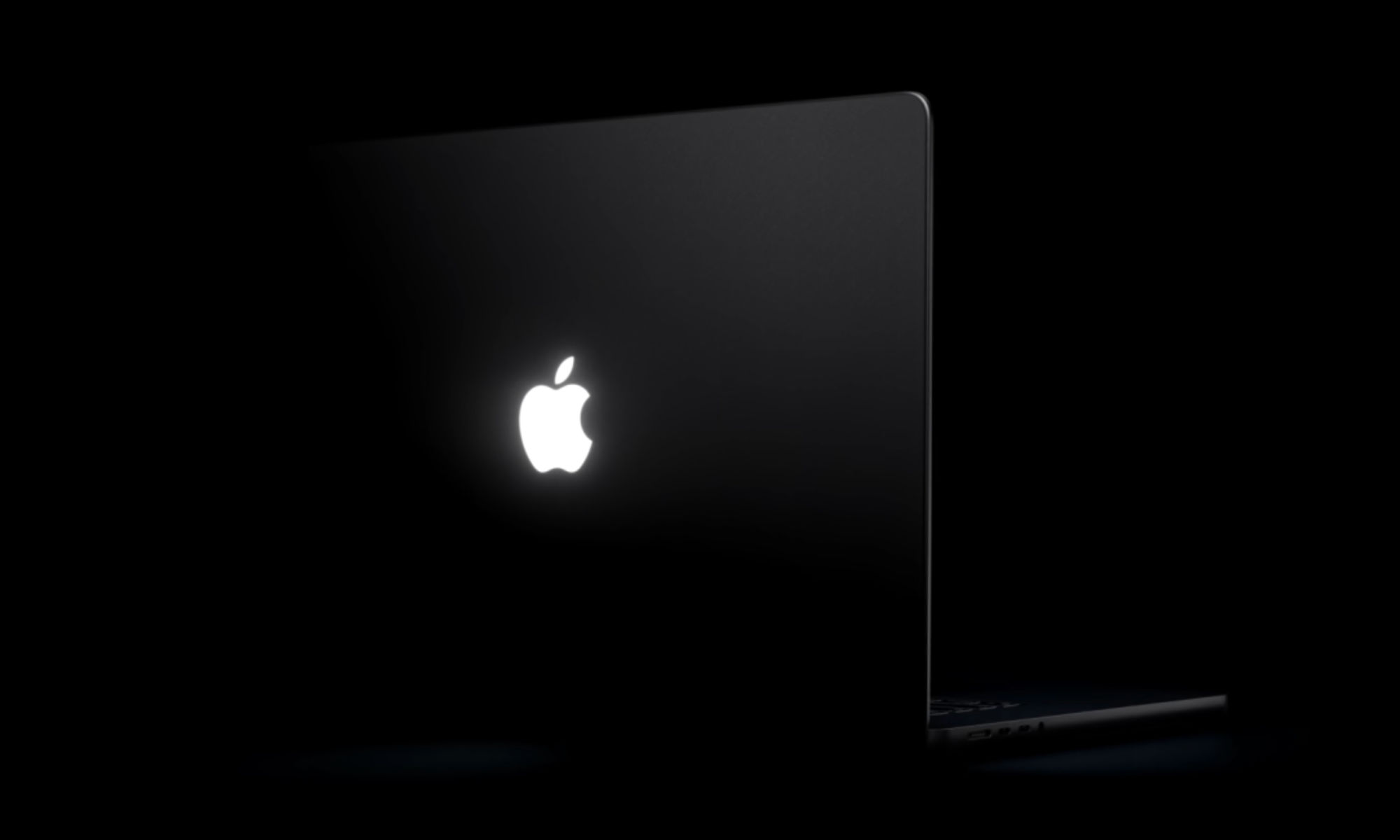 Customize the New MacBook Pro Glowing Apple Logo
- Pressing the Power button.
- Or, moving your cursor on the trackpad (if you've enabled this in System Preferences > Trackpad > Tap to wake).
And there you have it! Your Apple logo should now be glowing like a lighthouse in the night. Isn't that just the cutest thing since emojis?
Step 3: The Art of Glow Control
But wait, you say you want more control? You want your logo to glow like a neon sign at a rock concert? Well, I can't promise you that, but I can tell you about a sneaky little app called Night Light.
This handy tool can adjust the color temperature of your screen, making it warmer and, you guessed it, glowier. You can find it in System Preferences > Displays > Night Shift. Just slide that 'Color Temperature' slider to the right, and voila! Your logo's got a new best friend.
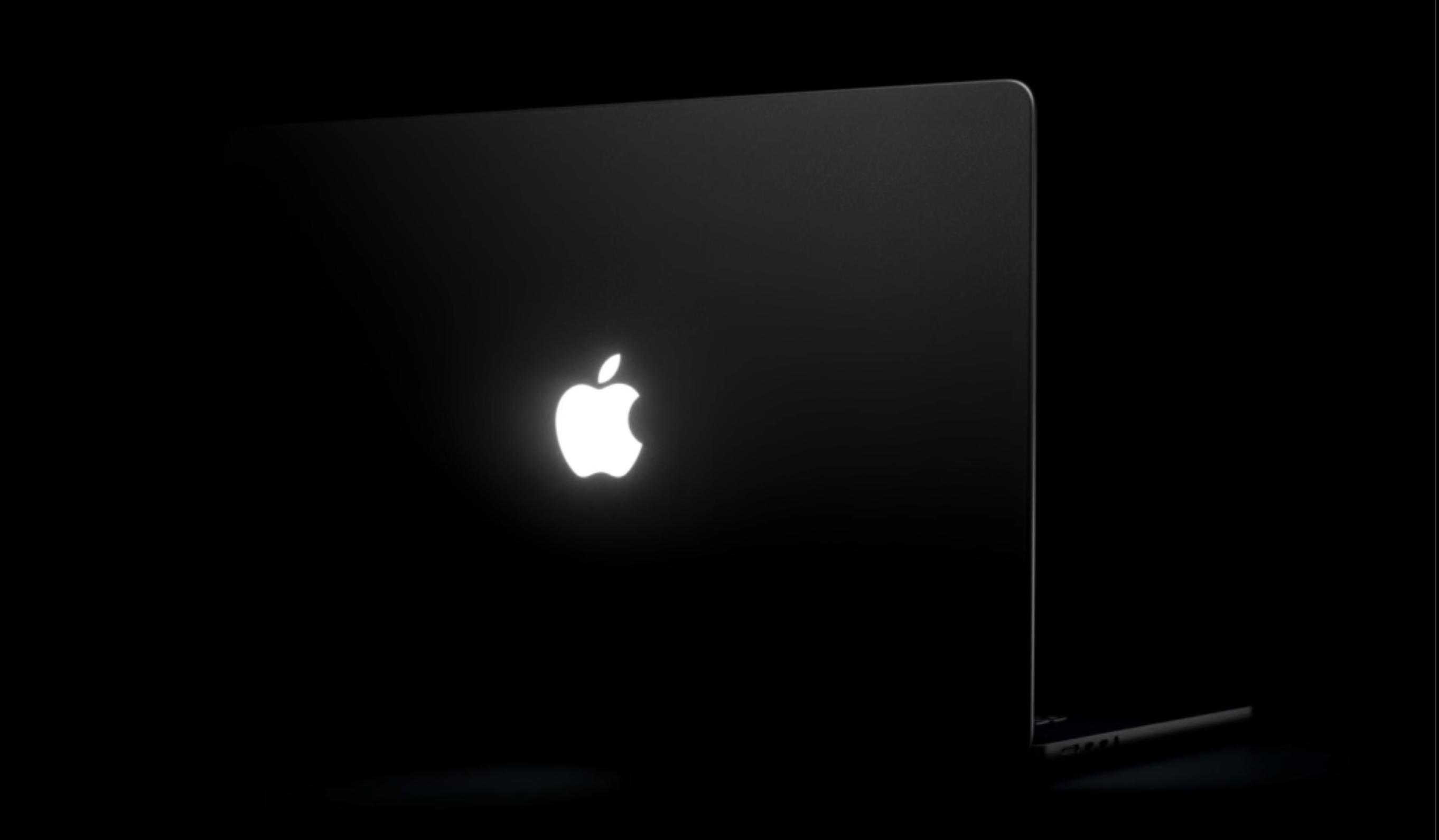 See how the new MacBook Pro makes its Apple logo glow | Cult of Mac
Bonus Round: The Glow-To-Emoji Hack
Now, you might be thinking, "This is all well and good, but can I make my logo glow and turn it into a pizza emoji?" Well, my friend, I'm afraid that's where the magic ends. But hey, a glowing logo is still pretty darn cool, right?
So, there you have it. You're now a master of the glowing Apple logo. Go forth, impress your friends, and remember: with great glow comes great responsibility. Don't go blinding people with your laptop in the middle of the night. That's just rude.
Happy glowing!
