How To Turn On Coordinates In Minecraft Realms

Alright, gather 'round, dear Minecraft adventurers! Today, we're going to tackle a question that's been keeping you up at night, or at least making you stumble around in the d...
Alright, gather 'round, dear Minecraft adventurers! Today, we're going to tackle a question that's been keeping you up at night, or at least making you stumble around in the dark: "How do I turn on coordinates in Minecraft Realms?" Fear not, for I am here to shed some light on this mysterious quest.
First Things First: What Are Coordinates?
You know how in real life, you've got your longitude and latitude to tell you where you are on this big blue marble? Well, Minecraft has its own version: coordinates. They're like the GPS of the Minecraft world, helping you keep track of your adventures and find your way back home. They're made up of three numbers: X, Y, and Z.
X, Y, Z: The Holy Trinity of Coordinates
X and Z are like the dynamic duo of horizontal movement, telling you how far you are from the spawn point (that's the big, fancy term for the starting point of your world) east-west and north-south, respectively. Y, on the other hand, is the vertical hero, telling you how high or low you are from the spawn point.
Must Read
Now, you might be thinking, "That's all well and good, but how do I see these magical numbers?" Well, that's where we're headed, my friend. Let's dive in!
Turning On Coordinates: The Big Reveal
Alright, buckle up, because we're about to embark on a journey that's as easy as it is thrilling. Here we go:
First, you need to be the owner of the Realm. Sorry, guests, this one's not for you. But don't worry, you can always ask the owner nicely to turn it on for you. Who knows, they might even let you be the owner next time!
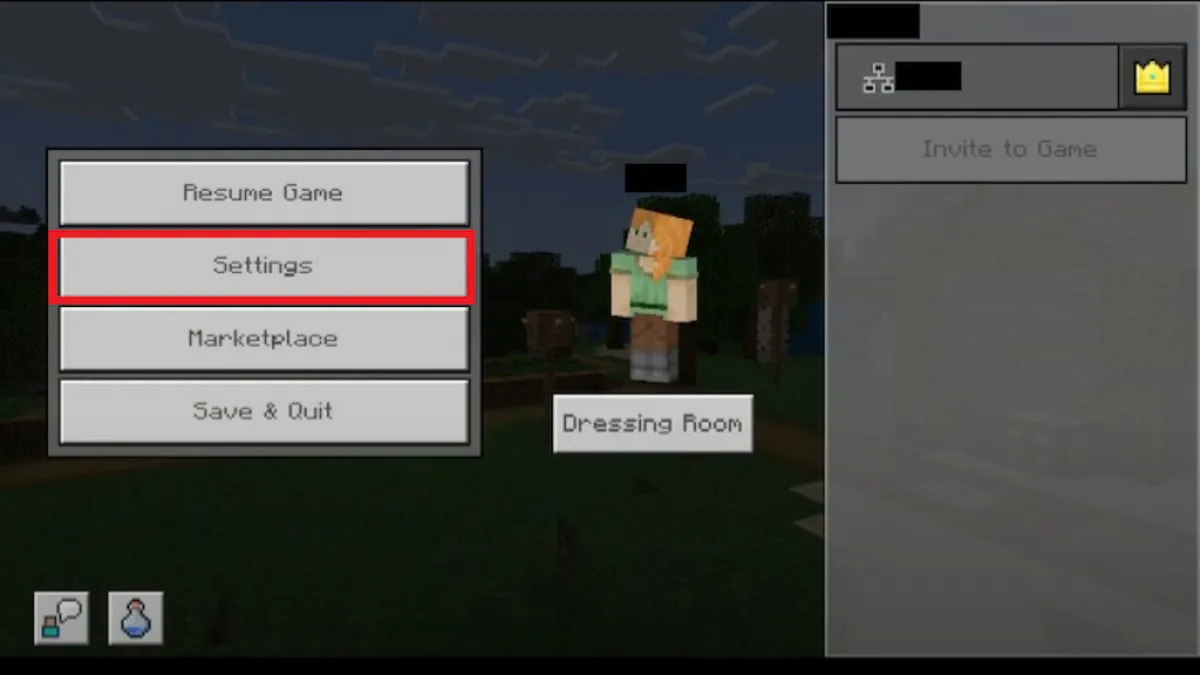
Now, hop into your Realm. Once you're in, look for the Settings button. It's usually lurking around the main menu, trying to blend in with the crowd. Click on it. Go on, you can do it!
 How to turn on and show Coordinates in Minecraft Realms | Pro Game Guides
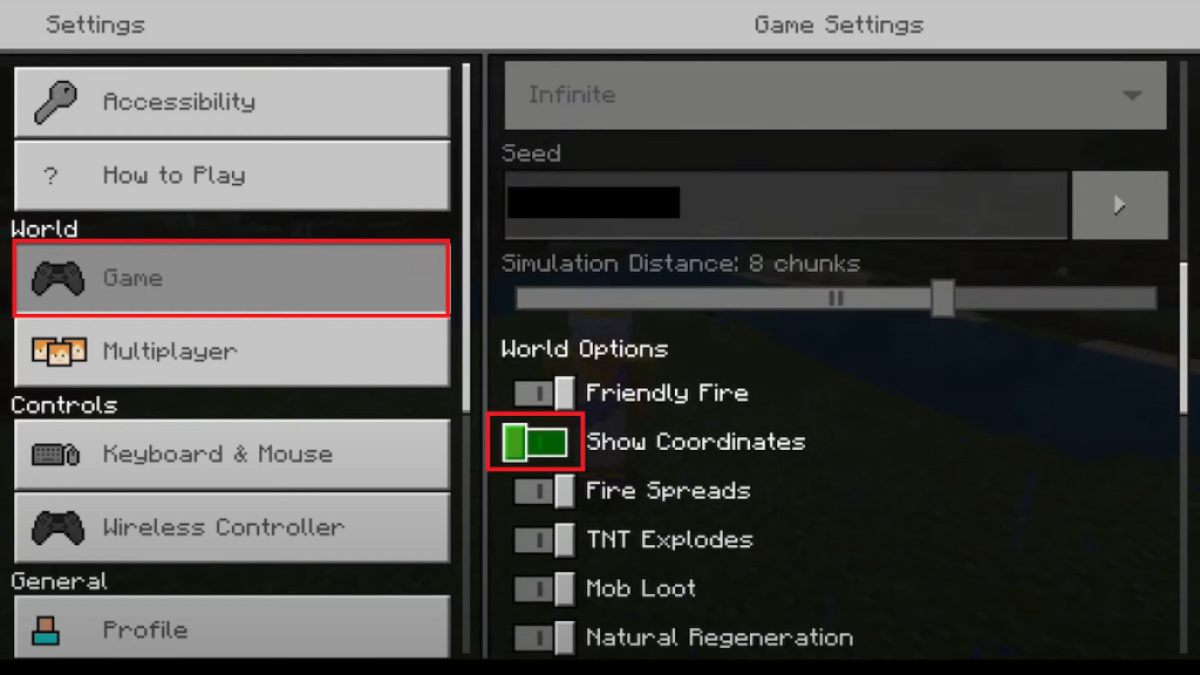
In the settings menu, you'll see a whole bunch of options. We're looking for the Game tab. Click on that. It's like finding the right key to open a treasure chest - satisfying, isn't it?
Now, scroll down until you see the Show Coordinates option. It might be hiding, so keep your eyes peeled. Once you've found it, click on it. Ta-da! Coordinates should now be visible in the top-left corner of your screen.
And there you have it! You've just turned on coordinates in your Minecraft Realm. You're now ready to navigate your world like a pro. Go forth and explore, dear adventurer!
But Wait, There's More!
You might be wondering, "What if I want to hide the coordinates? Maybe I'm trying to surprise someone with a secret base, or perhaps I just don't want to see those pesky numbers anymore." Well, fear not, for the solution is as simple as turning them on.
 How To ENABLE Realm Coordinates | Minecraft Bedrock Edition - YouTube
Just follow the same steps we took earlier, but this time, when you see the Show Coordinates option, click it again. It's like a light switch - one click turns it on, another click turns it off. Magic, isn't it?
Surprising Facts: Because Why Not?
Did you know that the farthest you can go in Minecraft without falling into the void is 30,000,000 blocks away from the spawn point? That's like trying to walk from New York to London without using any mode of transportation. Quite the trek, huh?
And here's another one for you: The largest Minecraft structure ever built is a life-sized model of the International Space Station. It's so big, it would take you over 100 hours to walk around it. Now that's what I call a project!
So there you have it, folks! You're now equipped with the knowledge to turn on and off coordinates in your Minecraft Realm. Go forth, explore, build, and most importantly, have fun! And remember, if you ever get lost, just look at your coordinates. They'll always lead you home. Happy adventuring!
