How Do I Get A Tick In Excel

Hey there, spreadsheet whiz! You're here because you've got a tickle in your Excel finger, huh? Let's dive into this together, yeah? No need for fancy jargon, we're just two f...
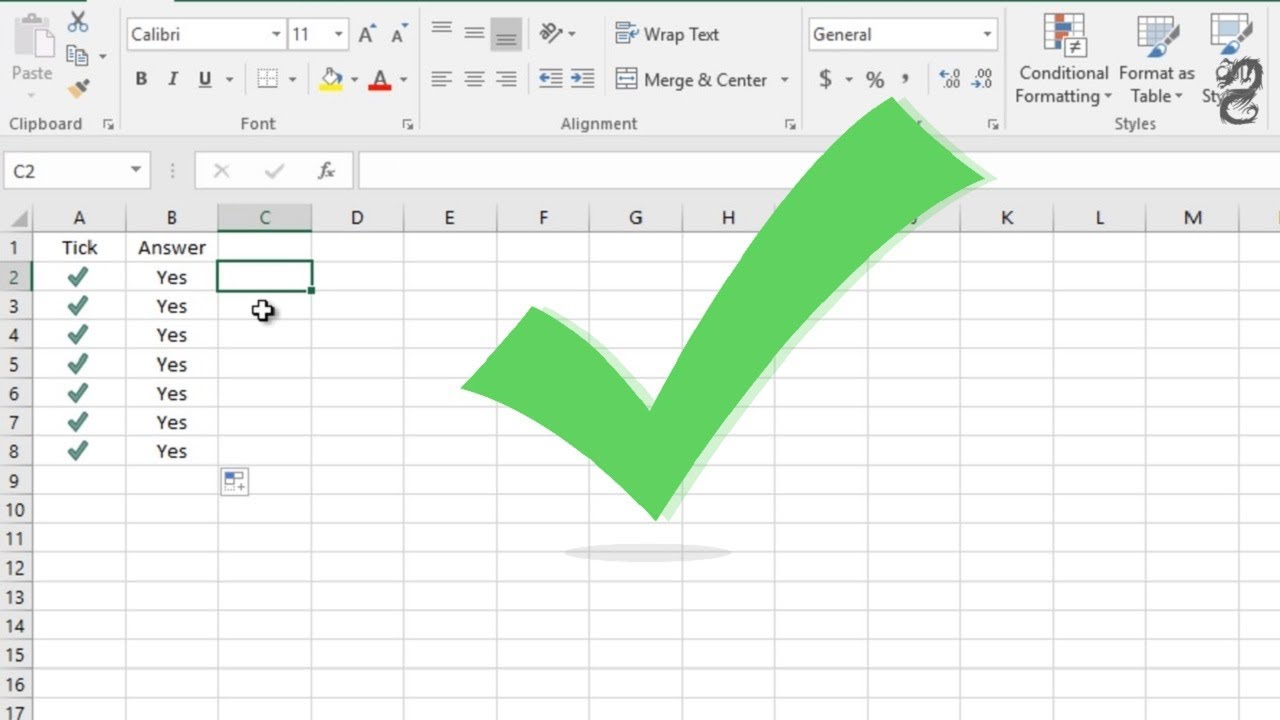
Hey there, spreadsheet whiz! You're here because you've got a tickle in your Excel finger, huh? Let's dive into this together, yeah? No need for fancy jargon, we're just two friends chatting over a steaming cup of joe.
First things first, what's a tick, you ask?
Well, imagine you're playing a game of tic-tac-toe, but instead of Xs and Os, you're filling in tiny squares. That, my friend, is a tick. In Excel speak, it's a checkmark. And wouldn't you know it, Excel's got a sneaky little trick up its sleeve to create one.
Meet the humble Alt + T code
Now, don't go rolling your eyes at me. I know it sounds too simple, but stick with me. This little combo is your secret weapon. Here's how it works:
Must Read
1. Position your cursor where you want your tick to appear. You know, like when you're trying to decide where to put that perfect piece of art on your wall. Only, in this case, it's a tiny, tiny wall.
2. Press and hold down the Alt key. You know, that key that's always getting in the way when you're trying to type too fast. Now's your chance to show it who's boss.
3. While still holding Alt, press the T key. And just like that, voilà! A shiny new tick appears. Isn't that just the cutest thing you've ever seen?
But wait, there's more!
You thought that was it, didn't you? Well, buckle up, buttercup. Excel's got a whole tick party planned for us.
 How To Insert Tick Mark In Excel?
You can change the style of your tick too. Yeah, you heard me right. Who knew ticks could be so fashionable? Here's how:
1. After creating your tick, click on it. See that little box that appears? That's your tick's personal stylist. We're gonna give it a makeover.
2. Click on the tick's border. Yep, you can change the color, the style, even make it dashed or dotted. Who knew ticks could be so versatile?
3. Click on the fill color. Now, don't go crazy with the neon, okay? We want our tick to be tasteful. But hey, if you're feeling wild, who am I to judge?
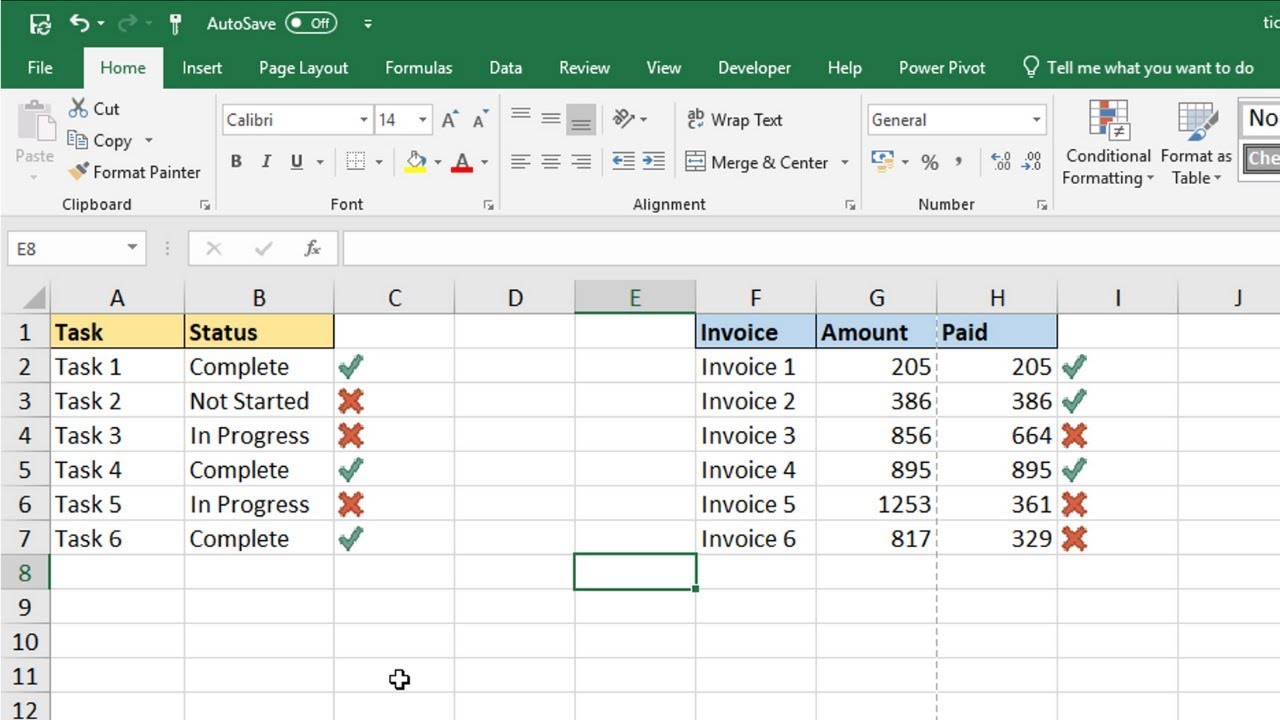 Favorite Info About How To Get A Tick Symbol In Excel - Gununique
Now, let's talk about those pesky bullet points
You know the ones. They're like the uninvited guests at your party, always showing up and never leaving. But fear not, we can tame them too.
So, you've got your tick, you've styled it to perfection, but now you want it to be a bullet point? Easy peasy. Just select your tick and press the Enter key. Ta-da! A new bullet point appears, ready and waiting for your input.
And if you want to turn that bullet point into a tick? Well, you know what to do. Alt + T, baby. It's like we're speaking our own secret language now, isn't it?
And there you have it!
You're now a certified tick-creating, bullet-point-taming, Excel whiz. Go forth and conquer those spreadsheets, my friend. And remember, if anyone asks, you learned it all from little old me.
Now, who's ready for a refill?
