How Can I Switch Off My Iphone

Ever felt like your iPhone is a tiny, tech-savvy leash, keeping you hooked 24/7? It's time to give that little guy a break - and yourself too! Let's explore how to switch off...

Ever felt like your iPhone is a tiny, tech-savvy leash, keeping you hooked 24/7? It's time to give that little guy a break - and yourself too! Let's explore how to switch off your iPhone, because even tech geniuses need a siesta.
Why Bother? You Ask?
Well, aside from the obvious 'me time' benefits, did you know that constant screen time can mess with your sleep patterns? Blue light from your phone can trick your brain into thinking it's still daytime, making it harder to nod off. Plus, those notifications can be stress-inducing little devils, pumping up your cortisol levels. Yikes!
But fear not, dear tech junkie! There are ways to tell your iPhone to take a hike - at least for a little while. Let's dive in.
Must Read
Bedtime Mode: The Sleep Fairy's Helper
Meet Bedtime, your new best friend. This nifty feature lets you set a sleep schedule, and your iPhone will automatically switch to a soothing, nighttime display. It's like having a sleep fairy, but with better tech support.
To enable Bedtime, open the Clock app, tap 'Bedtime' at the bottom, then follow the prompts. You can set your bedtime, wake-up time, and even choose which days of the week you want to snooze. Easy peasy!
Do Not Disturb: The Ultimate Anti-Social Feature
This one's a game-changer. Do Not Disturb silences all notifications, so you won't be disturbed by that pesky group chat or work email. You can set it to turn on automatically during specific hours, or use it manually when you need some serious 'me time'.
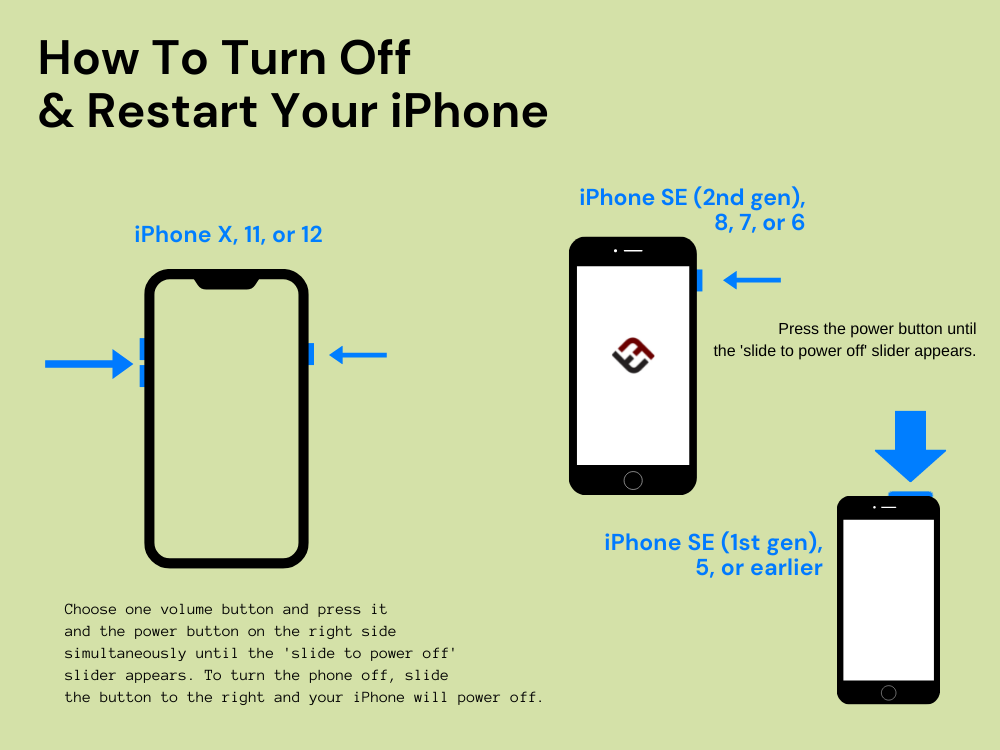 How Do I Turn Off Iphone 7 Plus | Detroit Chinatown
To set it up, go to Settings, then 'Do Not Disturb'. Here, you can schedule it to turn on and off automatically, or use the 'Do Not Disturb While Driving' feature to keep your eyes (and hands) on the road.
Screen Time: The Parenting Tool for Adults
Screen Time isn't just for the kiddos. This feature lets you set app limits, schedule downtime, and even monitor your own phone usage. It's like having a digital parent - but without the eye-rolling.
To access Screen Time, go to Settings, then 'Screen Time'. Here, you can set app limits, schedule downtime, and even see detailed reports of your phone usage. Scary, huh?
 3 Ways to Turn off an iPhone - wikiHow
But What If I Need My Phone?
Fear not, phone addict! You can still receive important notifications even when your iPhone is in sleep mode. Just add the apps you deem 'essential' (like your alarm clock or medical app) to the 'Always Allowed' list in Screen Time.
And if you're worried about missing something crucial, you can always set up a 'Critical Alerts' list in the 'Emergency Access' section of the Health app. This way, only the most important people and apps can break through your digital silence.
So, Are You Ready to Disconnect?
It's time to give your iPhone (and your brain) a break. With these features, you can switch off, unwind, and maybe even catch some Zs. So go on, give it a try. Your future self will thank you - and so will your sleep-deprived brain.
And remember, folks, balance is key. Your iPhone might be a marvel of modern technology, but it's no substitute for a good book, a face-to-face chat, or a solid night's sleep. So go forth, disconnect, and enjoy the real world. Your iPhone will still be there when you get back. Promise.
