How To Set A Timer For Spotify

So, there I was, dancing like nobody's watching, when suddenly, my Spotify playlist comes to an abrupt halt. I mean, who planned a party without an endless music supply, right...
So, there I was, dancing like nobody's watching, when suddenly, my Spotify playlist comes to an abrupt halt. I mean, who planned a party without an endless music supply, right? That's when it hit me - I could've set a timer for Spotify! Duh! I know, I know, I should've thought of that before inviting the whole neighborhood. But hey, live and learn, right?
Why bother with a timer?
Alright, let's rewind a bit. You might be wondering, why even bother setting a timer for Spotify? Well, my friend, there are plenty of reasons. Maybe you've got a strict bedtime routine, and you don't want to wake up to the sound of Despacito blasting from your speakers at 3 AM. Or perhaps you're trying to save data on your phone plan. Whatever your reason, setting a timer is a nifty little trick that can save you from some awkward situations.
Let's get started!
Now, before we dive into the how-to part, let me give you a little heads-up. This trick works best on the Spotify mobile app. If you're a desktop user, you might want to grab your phone or switch to the web player. Ready? Let's do this!
Setting a timer on Spotify
Method 1: Using the built-in timer
Alright, so the first method is using Spotify's built-in timer. It's super easy, and you'll find it right in the app. Here's how:
- Open the Spotify app and start playing a song or a playlist.
- Tap on the 'Now Playing' bar at the bottom of the screen.
- Look for the 'Timer' icon (it's a little clock) and tap on it.
- Choose the duration you want the music to play for, then tap 'Start Timer'.
And that's it! Once the timer runs out, Spotify will pause the music. Pretty neat, huh?
 How to Set Up a Sleep Timer in Spotify
Method 2: Using a third-party app
Now, if you're an Android user and you want a bit more control over your music timer, you might want to check out some third-party apps. One of my favorites is 'Timers for Spotify'. It's free, easy to use, and it lets you set multiple timers for different playlists. Here's how to use it:
- Download and install 'Timers for Spotify' from the Google Play Store.
- Open the app and grant it the necessary permissions to access your Spotify account.
- Choose the playlist you want to set a timer for, then select the duration.
- Tap 'Create Timer', and you're good to go!
With this app, you can also set recurring timers, which is perfect if you've got a daily playlist that you want to listen to at the same time every day.
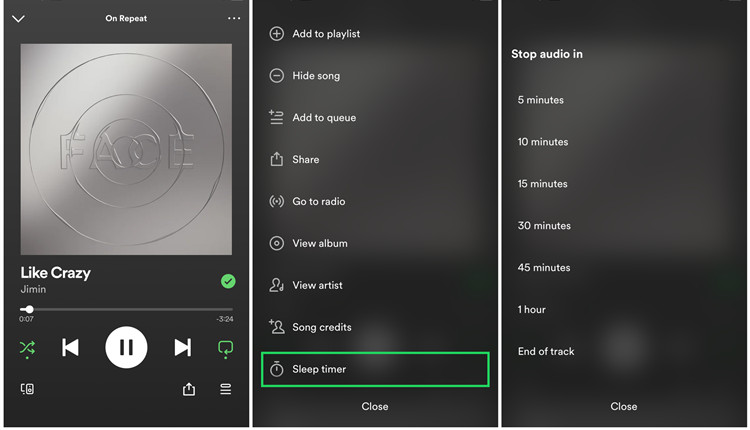 Cómo Poner Temporizador en Spotify para Canciones/Podcasts/Audiolibros
And that's a wrap!
And there you have it, folks! Two easy methods to set a timer for Spotify. I hope this little guide helps you avoid any more musical mishaps. Now, go forth and enjoy your music, guilt-free!
Oh, and if you ever find yourself in a situation like mine, just remember: always plan for the unexpected. Or, you know, just set a timer. It's easier.
