How To Get Apps On A Samsung Tv

Ever found yourself scrolling through Netflix on your Samsung TV, wishing you could dive into a world of apps like you do on your smartphone? Well, guess what? You can! Let's...

Ever found yourself scrolling through Netflix on your Samsung TV, wishing you could dive into a world of apps like you do on your smartphone? Well, guess what? You can! Let's take a break from binge-watching "The Crown" and get our Samsung TV app-savvy. It's easier than you think, and we promise, no tech-jargon detox required.
First Things First: Check Your TV's Age
Before we dive in, let's make sure your Samsung TV is app-compatible. Most Samsung TVs from 2016 onwards have the Tizen OS, which is app-friendly. If you're unsure, a quick Google search with your TV model number should set your mind at ease. Now, let's get this show on the road!
Connecting Your Samsung TV to the Internet
If you haven't already, connect your TV to the internet. It's like giving your TV a brain boost - suddenly, it can do so much more! Most Samsung TVs have built-in Wi-Fi, but if you're using an older model or an ethernet connection, no worries. Just follow the on-screen instructions, and you'll be surfing the web in no time.
Must Read
Navigating the Samsung TV App Store
Alright, now that your TV is online, let's explore the Samsung App Store. Press the "Smart Hub" button on your remote, and you'll find it right there. It's like walking into an app mall, with categories like Movies & TV Shows, Music, Social, and even Games. Fancy a round of "Angry Birds" on the big screen? Now you can!
Downloading Apps: A Breeze!
Found an app you like? Great! Downloading it is as easy as 1, 2, 3. Just select the app, click "Install", and watch as it magically appears on your home screen. It's like having a personal app elf, but without the pointy shoes.
 How to Download Apps on Samsung Smart TV Quickly & Easily
But wait, what if you want to download an app that's not in the Samsung App Store? No problem! Samsung TVs support screen mirroring from your smartphone. Just enable it on your phone's settings, and you can cast apps directly to your TV. It's like having a secret app-passport, opening up a whole new world of entertainment.
Logging In: Because Sharing is Caring
Some apps, like Netflix or Hulu, require you to log in with your account details. Don't worry, it's not as scary as it sounds. Just follow the on-screen instructions, and you'll be streaming your favorite shows in no time. And the best part? You can log in with your Samsung Account or even your Google Account. It's like having a universal app key, unlocking a world of entertainment.
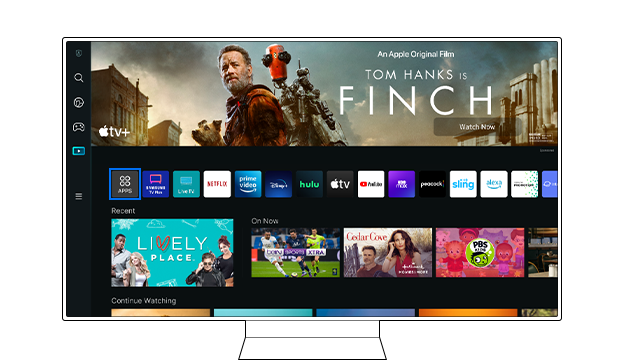 [2022] How to install apps and manage downloaded apps on your Samsung
Organizing Your Apps: Because Clutter is So Last Season
Now that you've got your apps, it's time to organize them. Samsung TVs let you create folders and rearrange apps on your home screen. It's like having a personal app stylist, helping you create the perfect digital space. So go ahead, make your home screen as fabulous as your taste in entertainment.
And There You Have It!
And that's how you get apps on your Samsung TV. Wasn't so hard, was it? Now, go forth and explore the wonderful world of apps. Whether you're into movies, music, or games, there's something out there for everyone. And who knows, you might just discover your new favorite pastime.
But remember, as you dive into this app-filled world, don't forget to take breaks. After all, life's not just about apps - it's about balance. So go on, enjoy your new app-powered life, but don't forget to look up from your TV once in a while. The real world's out there, and it's pretty amazing too.
