How To Add Cards To Apple Watch

Hey there, tech-savvy friend! Today, we're going to roll up our sleeves and dive into the fun world of customizing your Apple Watch. Specifically, we're talking about adding c...

Hey there, tech-savvy friend! Today, we're going to roll up our sleeves and dive into the fun world of customizing your Apple Watch. Specifically, we're talking about adding cards - yes, you heard it right! Your watch can be a little more than just a time-teller, it can be your very own, wrist-worn, high-tech magic trick.
Why Add Cards, You Ask?
Well, imagine this: you're out and about, and suddenly, you need to make a quick call, check your calendar, or even control your music. With added cards, your Apple Watch becomes your very own, personalized command center. It's like having a tiny, super-efficient assistant on your wrist. Isn't that just the coolest?
Let's Get Started!
First things first, make sure your Apple Watch is connected to your iPhone and that both are updated to the latest software. Then, grab your iPhone and open the Watch app. Easy peasy, right?
Choosing Your Cards
Now, here's where the fun begins. Tap on the Face Gallery tab at the bottom of your screen. You'll see a bunch of different watch faces to choose from. Each face supports a different number of complications - that's tech talk for 'little extra features' - which you can customize with cards.
Swipe left and right to browse through the faces, and tap on one that catches your eye. Once you've chosen your face, it's time to pick your cards. Tap on the Customize button, and you'll see a list of available complications. These could be anything from the weather, to your heart rate, to your next appointment. The choice is yours!
Adding Your Cards
To add a card, just tap on the complication you want to replace. A list of available cards will pop up. Here's where you can get creative! Want to see the temperature in Fahrenheit instead of Celsius? No problem! Prefer to see the phase of the moon? You got it! Each card can be customized to show exactly what you want to see.
 How to Use Apple Pay on an Apple Watch
Once you've chosen your card, it'll appear on your watch face. If you want to move it around, just press and hold on the complication until the watch face jiggles. Then, you can drag your card to its perfect spot. It's like playing a real-life game of Tetris, but with way more useful results!
But Wait, There's More!
Feeling like a change? You can switch between watch faces with just a swipe. And if you want to change the style of your watch face, like going from digital to analog, you can do that too. Just tap on the New button in the Face Gallery to explore even more options.
And the best part? You can set different watch faces for different times of the day. So, you could have a super productive 'work mode' face, a fun 'weekend' face, and a relaxing 'bedtime' face. It's like having a whole wardrobe of watches, all in one tiny, amazing device.
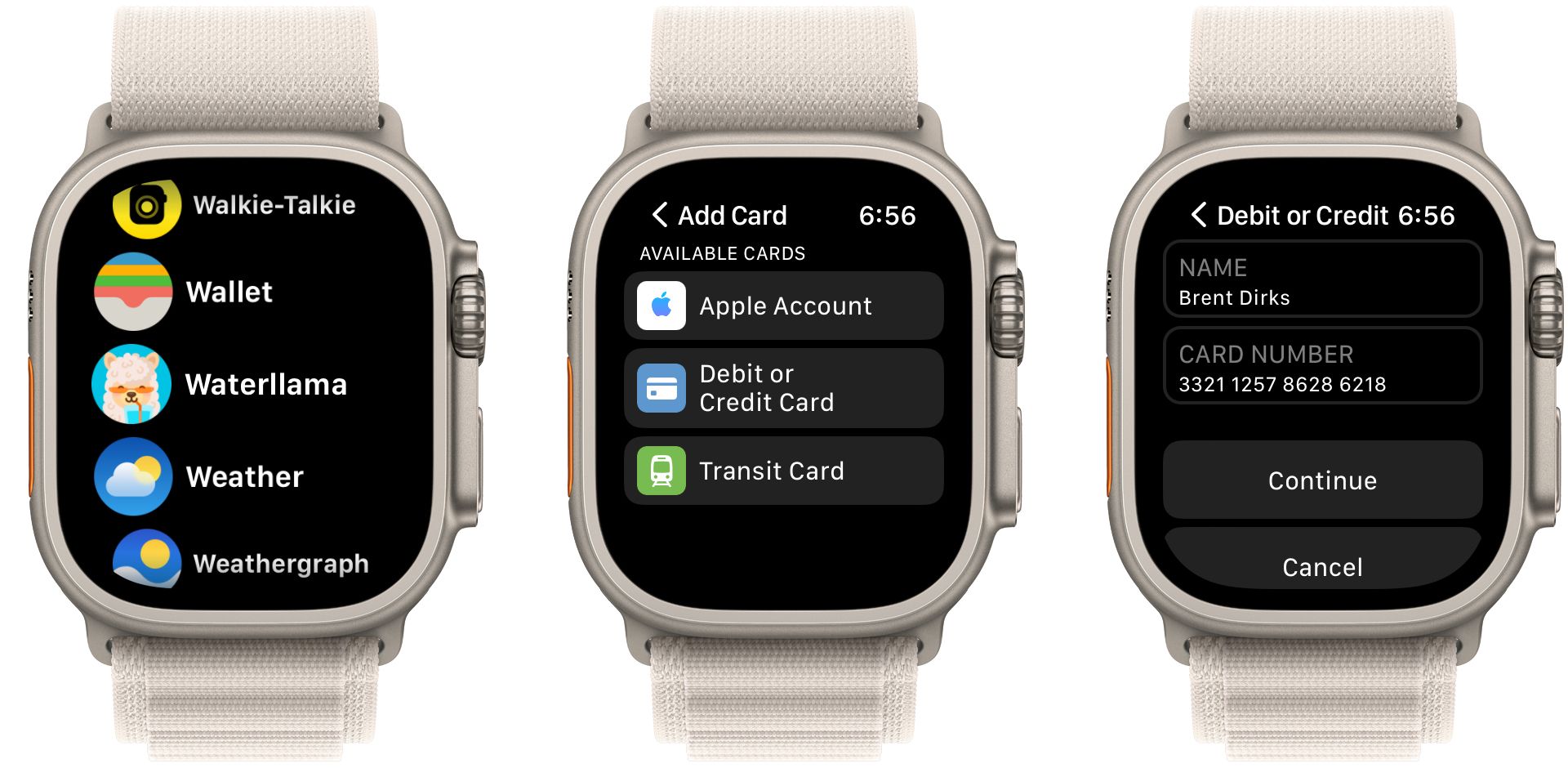 How to Add a Card to Apple Pay
You're All Set!
And there you have it! Your Apple Watch is now ready to roll with your personalized cards. Isn't it amazing how a little customization can make such a big difference? Your watch isn't just a gadget anymore - it's an extension of you, designed just the way you like it.
So, go ahead, show it off, and enjoy the little boost of confidence that comes with knowing you've got everything under control. You're not just wearing a watch - you're wearing a statement. And it's a pretty cool one at that!
Now, go forth, explore, and have fun with your new, personalized Apple Watch. And who knows? Maybe next time, we'll tackle something even more exciting. Until then, happy customizing!
