How To Hide A Page On Wordpress

Hey there, WordPress whiz! You've got a secret page, huh? A little slice of the internet just for you and your select few. But how do you keep it hidden from prying eyes? Let'...

Hey there, WordPress whiz! You've got a secret page, huh? A little slice of the internet just for you and your select few. But how do you keep it hidden from prying eyes? Let's chat about that, yeah?
Why Hide a Page, You Ask?
Well, maybe it's a surprise party for your mom (hi, Mom!), or perhaps it's a secret project you're not ready to share. Whatever the reason, WordPress has got your back. But first, let's get something straight: hiding a page isn't about making it invisible to everyone. It's about keeping it out of your main menu and search results. Capisce?
Let's Get Technical
Alright, grab your coffee (or tea, no judgment here), and let's dive in. We're gonna use a plugin called "Password Protected Posts." It's like the bouncer of the WordPress world, checking IDs and keeping out unwanted guests.
Must Read
First things first, install and activate the plugin. It's as easy as 1, 2, 3 (or rather, click, click, click). Once it's activated, you're ready to roll.
Setting Up Your Secret Page
Now, let's say you've got a page called "Top Secret Stuff." To hide it, you'll need to edit that page. Click on "Edit" (or "Edit with Block Editor" if you're feeling fancy), and scroll down to the "Password Protect This Post" section. See it? Good.
Check the box that says "Password protect this post." Then, under "Password," type in a password that only your VIPs know. Something like "Ilovemom" or "ProjectXtraordinary."
But wait, there's more! You can also add a message that'll show up when someone tries to access the page without the password. Something like, "Sorry, you're not invited to this party. Better luck next time!"
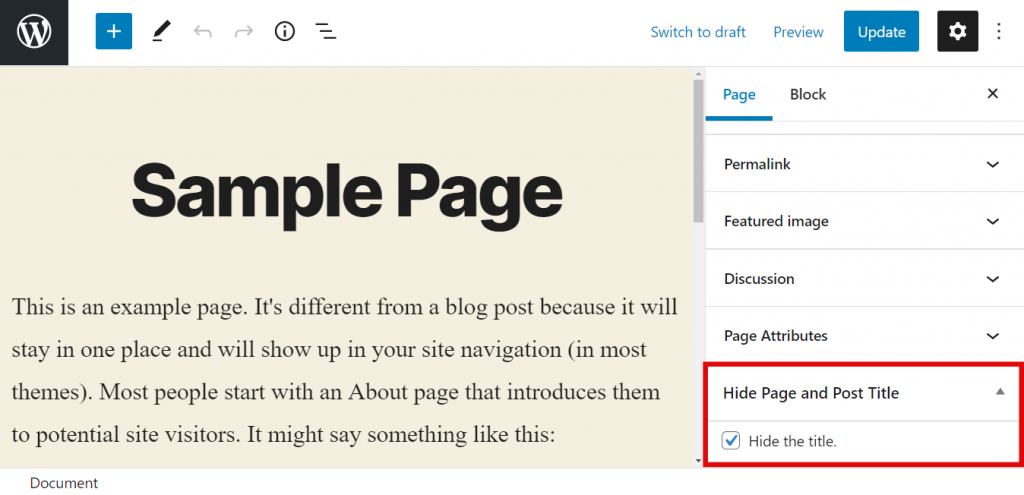 How to Hide Page Title in WordPress: Manual Method + Plugins
Once you're done, click "Update" (or "Publish" if you're creating a new page). And just like that, your page is hidden from the public eye. But remember, it's still accessible to anyone who knows the URL. So, keep that password safe!
Keeping It Out of Sight
Now, let's make sure your secret page doesn't show up in your main menu or search results. To do this, we'll need to edit your theme's functions.php file. Don't worry, it's not as scary as it sounds. Just make sure you've got a backup of your site first. Safety first, right?
Once you've got your backup, add this code to the functions.php file:
```php function hide_page_from_menu($query) { if ($query->is_main_query() && is_home()) { $query->set('post__not_in', array(123)); // Replace 123 with your page ID } return $query; } add_action('pre_get_posts', 'hide_page_from_menu'); ```Replace "123" with the ID of your secret page. You can find the ID in the URL when you're editing the page. It's the number after "post=".
 How to Hide a Page in WordPress: 6 Methods (2026 Guide) - WPZOOM
Now, your secret page won't show up in your main menu. But what about search results? To hide it from there too, add this code:
```php function exclude_page_from_search($query) { if ($query->is_search) { $query->set('post__not_in', array(123)); // Replace 123 with your page ID } return $query; } add_action('pre_get_posts', 'exclude_page_from_search'); ```Again, replace "123" with your page ID.
Testing, Testing...
Alright, you're all set! But before you go around bragging about your secret page, let's test it out. Try accessing the page without the password. You should see the message you set earlier. Then, try searching for the page. It should be nowhere to be found.
And there you have it! Your very own secret page on WordPress. Just remember, keeping secrets is fun, but don't go using this for anything, you know, illegal. We don't want to see you on the front page of the news, now do we?
Happy hiding, and until next time, keep your WordPress adventures secret, but never shady. Over and out!
