How Do I Turn Off Ipad Air

Hey there, tech-savvy friend! Let's chat about something that's been bugging you - or rather, not bugging you. You know, when you're all done with your iPad Air, and you're re...

Hey there, tech-savvy friend! Let's chat about something that's been bugging you - or rather, not bugging you. You know, when you're all done with your iPad Air, and you're ready to call it a day. Or night. Or whenever. The question is, how do you turn off this sleek little gadget?
Meet the Side Button - Your New Best Friend
First things first, let's introduce you to the side button. No, it's not a fancy new dance move. It's that little button on the right side of your iPad. You can't miss it - it's got that classic Apple logo etched onto it. Now, don't go pressing it willy-nilly. We're going to do this the right way.
Step 1: Press and Hold
Gently, now. We don't want to break it. Just press and hold that side button for a couple of seconds. See those words popping up on your screen? That's your iPad saying, "Hey, I'm listening. What do you want?"
Must Read
Step 2: Swipe Right
Now, here's where it gets fun. You're going to swipe that little power slider to the right. It's like you're giving your iPad a little push out the door. "Bye, iPad! Have a good rest!"
And that's it! Your iPad will start winding down, like a little digital sun setting. The screen will go black, and your iPad will slip into a peaceful slumber. But wait, there's more!
Wakey, Wakey, Eggs and Bakey - Turning Your iPad Back On
Alright, so you've had your break. You've caught up on your z's, or maybe you've just been binge-watching your favorite show on your TV. Now, you're ready to dive back into the wonderful world of your iPad. Let's wake it up!
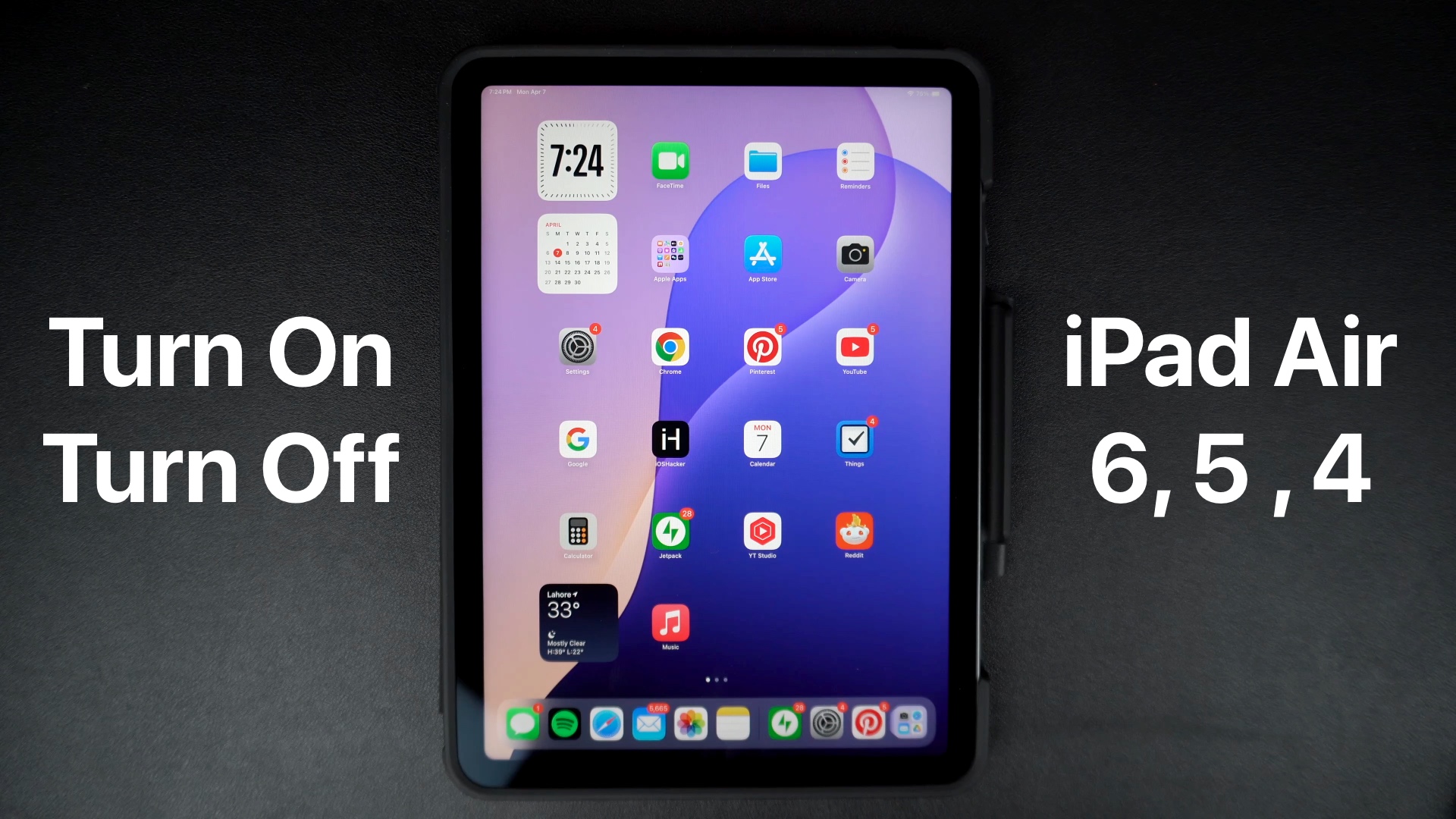 How To Turn On And Turn Off iPad Air - iOS Hacker
Press and Hold Again
Yep, you're going to press and hold that side button again. But this time, instead of swiping right, you're going to wait a second or two. See that Apple logo pop up on the screen? That's your iPad saying, "I'm coming back to life!"
Slide to Unlock
Now, here's where you get to play a little game. You'll see a little slider at the bottom of your screen. Swipe it up, and it's like you're pulling your iPad out of a deep sleep. It'll stretch, yawn, and then - ta-da! - it's ready to go again.
But Wait, There's More!
You thought we were done, didn't you? Well, buckle up, because we've got some fun facts and quirky details to share. Did you know that your iPad has a secret sleep mode? That's right! If you don't use it for a while, it'll automatically go into a low-power state. It's like it's meditating, saving energy for when you need it next.
 How to Turn Off iPad Air (2020) - With or Without Buttons
And here's a fun one - you can actually turn off your iPad using Siri. That's right, you can just say, "Hey Siri, turn off my iPad," and it'll do just that. Isn't technology amazing?
Why Turn Off Your iPad, You Ask?
Great question! Turning off your iPad doesn't just save battery life - although that's a big plus. It also gives your iPad a little digital detox. It's like a mini vacation for your gadget. Plus, it's a great way to end the day. It's like saying, "Goodnight, iPad. Sweet dreams!"
So there you have it, folks! Turning off your iPad is easy peasy. Just press, swipe, and say goodnight. And remember, every time you turn it off, you're giving your iPad a little pat on the back. "Good job, iPad. You've earned your rest."
Now go forth, tech-savvy friend, and turn off your iPad with confidence. And who knows? Maybe one day, your iPad will turn itself off just to say thanks. Wouldn't that be something?
