How To Copy And Cut On Mac

Hey there, tech enthusiast! Ever found yourself wishing you could snip and paste like a pro on your Mac? You're in the right place. We're about to dive into the wonderful worl...
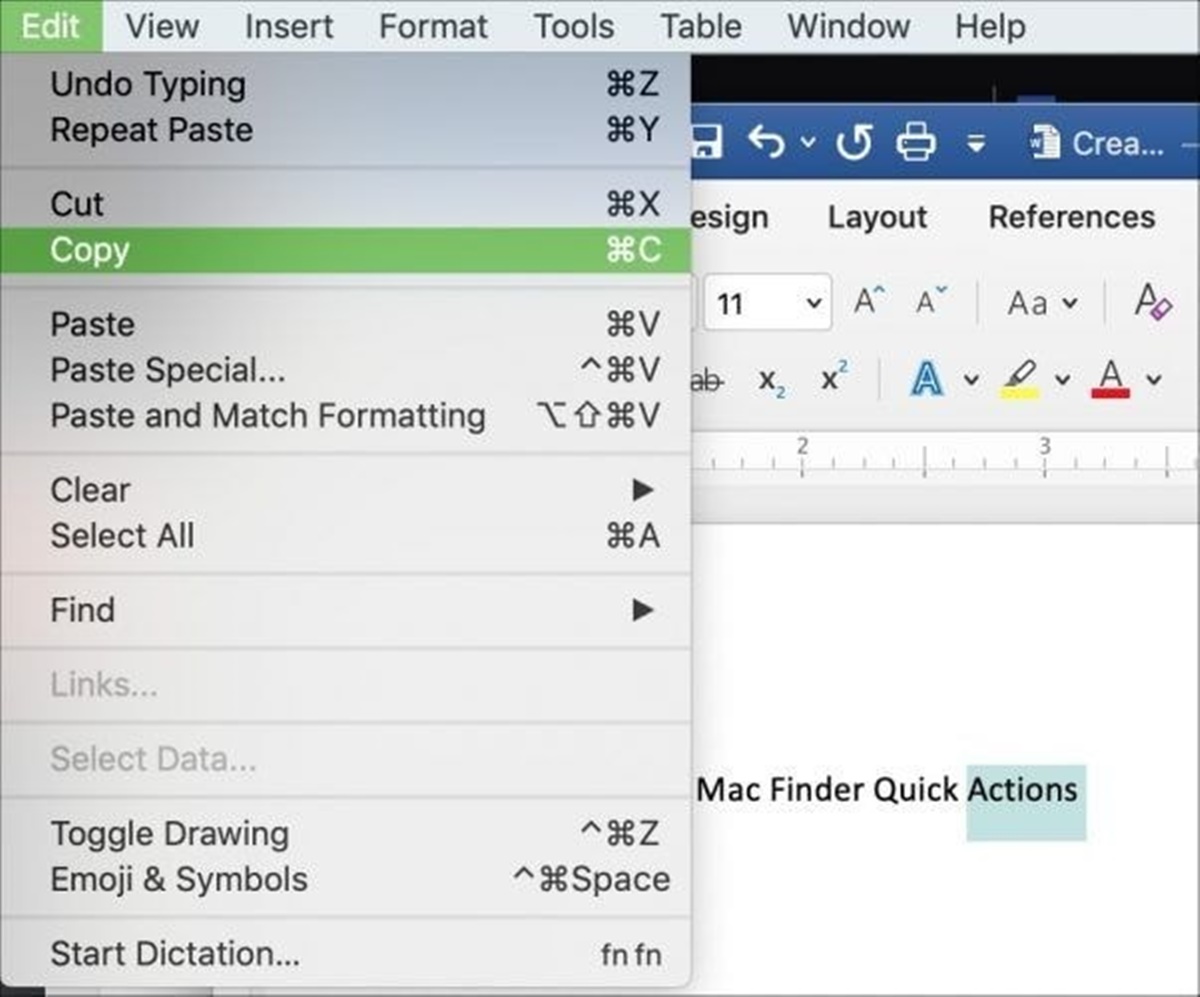
Hey there, tech enthusiast! Ever found yourself wishing you could snip and paste like a pro on your Mac? You're in the right place. We're about to dive into the wonderful world of copying and cutting on your Mac, and let me tell you, it's as easy as pie. So, grab a cuppa, get comfy, and let's get started!
First Things First: The Magic Wand
You know that little wand in your toolbar? That's your selection tool, and it's about to become your new best friend. It's like a magic wand because it lets you select text or objects with a simple click and drag. Pretty nifty, huh?
Selecting Text: The Art of Highlighting
Alright, let's start with the basics. Say you've got a paragraph of text, and you want to copy a bit of it. First, you'll want to highlight the text you're interested in. It's as easy as clicking and dragging with your magic wand. Once you've got your selection, you'll see it turn a funky color. That's your cue to move on to the next step!
Must Read
Now, here's where things get interesting. You've got a couple of options. You can either copy or cut your selection. So, which one should you choose?
Copy, Paste, Repeat: The Power of Duplication
Let's start with copying. You know how it is in the real world - if you want to make a copy of something, you just make another one, right? Well, your Mac works in much the same way. To copy your selected text, just press Cmd + C. That's 'Command' and 'C' at the same time. Easy peasy!
Now, to paste your copied text, just place your cursor where you want the text to go, and press Cmd + V. It's like magic, isn't it? You've just duplicated your text without losing the original. Neat!
 How to Cut, Copy, and Paste on a Mac
Cutting: The Art of Relocation
Alright, now let's talk about cutting. You know how it is when you're playing with playdough, and you want to move a piece from one place to another? You cut it, right? Well, your Mac works in much the same way.
To cut your selected text, just press Cmd + X. This will cut your selection and copy it to your clipboard. Then, just like before, place your cursor where you want the text to go, and press Cmd + V to paste it. The original text will be gone, and your selection will be in its new home. It's like moving house, but for text!
But Wait, There's More!
Now, you might be thinking, 'That's all well and good, but what if I want to copy and paste something that's not text?' Well, hold onto your hats, because your Mac can do that too!
Let's say you've got an image on your screen, and you want to copy it. Just select the image, and press Cmd + C to copy it. Then, open the app where you want to paste the image, place your cursor where you want the image to go, and press Cmd + V to paste it. Voila! Your image is now in its new home.
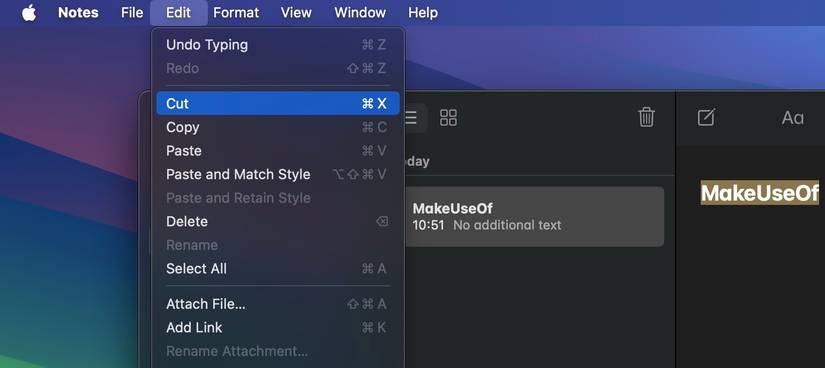 How to Copy and Paste on a Mac
And the best part? You can do this with just about anything you can select on your Mac. It's like having a magical clipboard that can hold anything you want. How cool is that?
But What If I Change My Mind?
Alright, so you've copied or cut something, but now you've changed your mind. Don't worry, your Mac's got you covered. You can access your clipboard history and paste something you've copied earlier.
To do this, just press Cmd + Shift + V. This will paste the most recent item you've copied. Keep pressing Cmd + Shift + V to cycle through your clipboard history. It's like having a time machine for your clipboard!
And there you have it, folks! You're now a certified Mac copying and cutting pro. Wasn't that easy? So, go forth and copy, paste, cut, and duplicate to your heart's content. Your Mac's ready and waiting!
