How To Find Out My Pc Specs

Ever wondered what's under the hood of your PC? You know, like how many cores your CPU has, or if your graphics card could handle a space battle? Well, let's dive in and find...
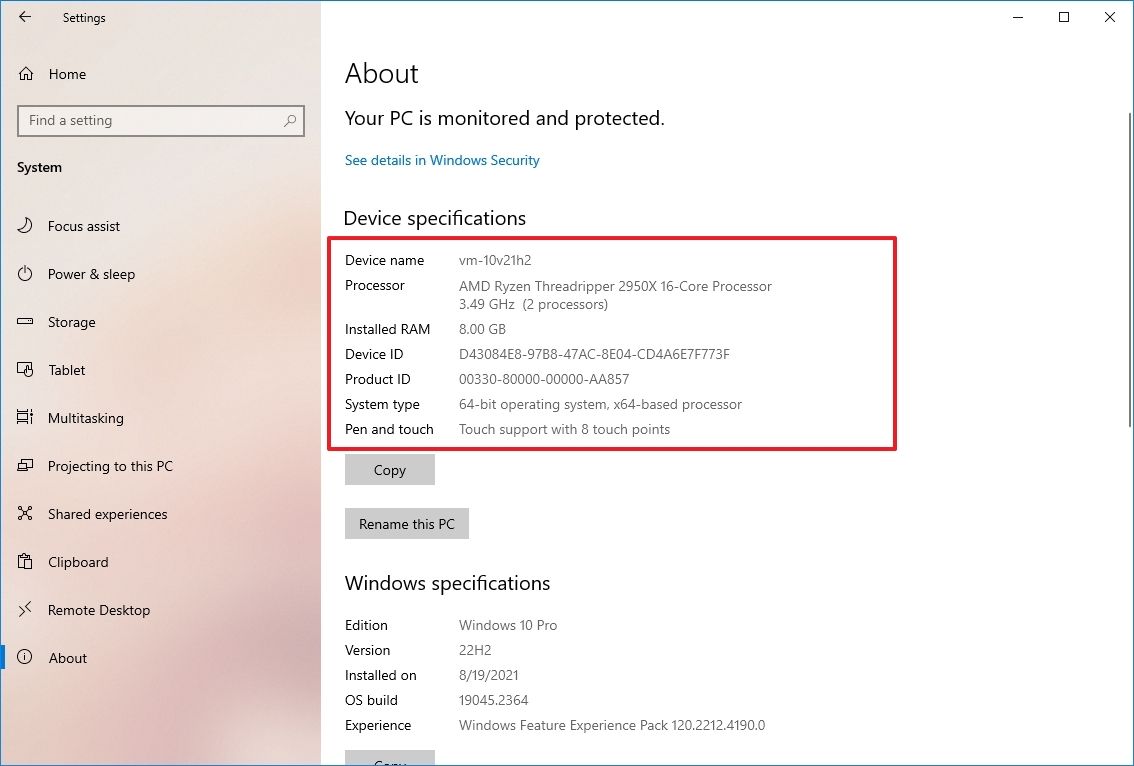
Ever wondered what's under the hood of your PC? You know, like how many cores your CPU has, or if your graphics card could handle a space battle? Well, let's dive in and find out, yeah?
Why Bother?
Knowing your PC specs can be like having a secret superpower. It's not just about bragging rights (though, let's be real, that's a bit fun too). It's about making sure your tech can handle what you throw at it.
Imagine your PC like a car. You wouldn't try to tow a trailer with a little city car, right? Same goes for your PC. Knowing its capabilities helps you decide what games to play, what software to use, and even when it's time for an upgrade.
Let's Get Technical
Alright, let's roll up our sleeves and get into the nitty-gritty. Don't worry, we'll keep it simple and fun, promise.
CPU: The Brain of the Operation
Your CPU, or Central Processing Unit, is like the director of your PC's performance. It's the one calling the shots, making sure everything runs smoothly.
To find out what you've got, press Windows + Pause/Break on your keyboard. A window will pop up with all sorts of info, including your CPU model. It might look something like this: Intel Core i7-10700K or AMD Ryzen 7 5800X.
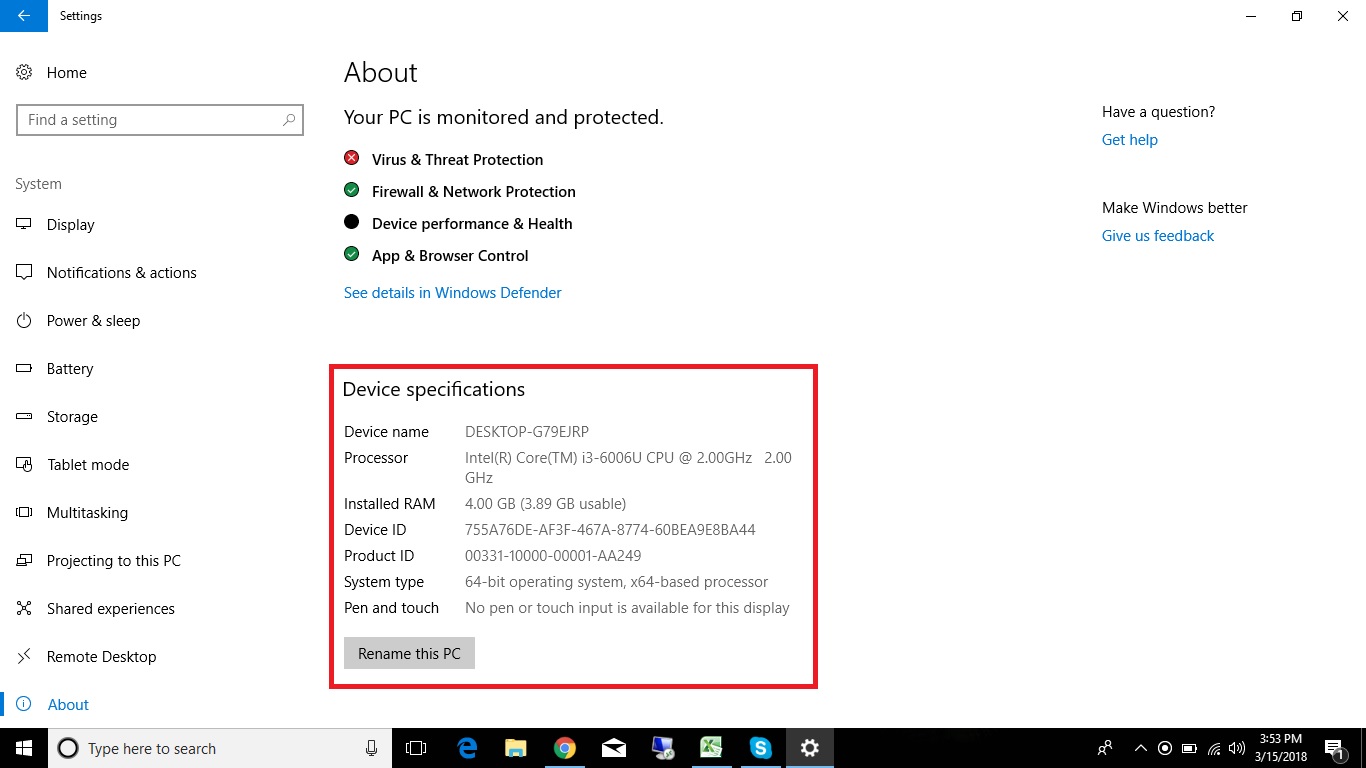 {SOLVED} How to find computer specs windows 10 - Windows
If you're feeling adventurous, you can also check out CPU Benchmark for a more detailed breakdown and to see how it stacks up against others.
RAM: The Short-Term Memory
RAM, or Random Access Memory, is like your PC's short-term memory. It stores data that your CPU might need to access quickly. More RAM means more data can be stored, making your PC run smoother.
Back in that Windows + Pause/Break window, you'll see your RAM listed too. It might look like this: 16.00 GB. That's 16 gigabytes, by the way. The more, the merrier!
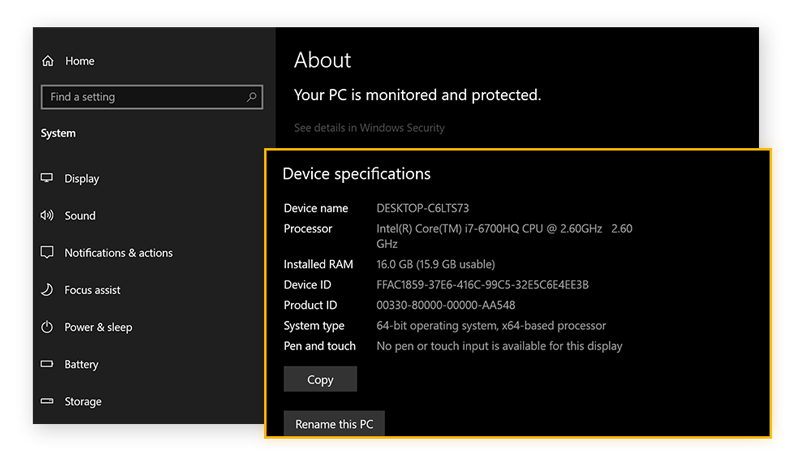 How to Check Computer Specs in Windows
GPU: The Visual Powerhouse
Your Graphics Processing Unit, or GPU, is what makes your games and movies look pretty. It's like the special effects team of your PC.
To find out what GPU you've got, you can use a tool like Nvidia's 'What GPU Do I Have?' tool or AMD's 'Radeon Software' for AMD GPUs. They'll tell you everything you need to know.
So, What's Next?
Now that you know your PC specs, you can start making informed decisions. Want to play the latest game? Check if your GPU can handle it. Thinking about upgrading? Now you know what to aim for.
And hey, if you ever feel like showing off, we won't judge. After all, knowledge is power, right?
